Install Flutter in Windows
1: Download Flutter.
Website: https://docs.flutter.dev/get-started/install

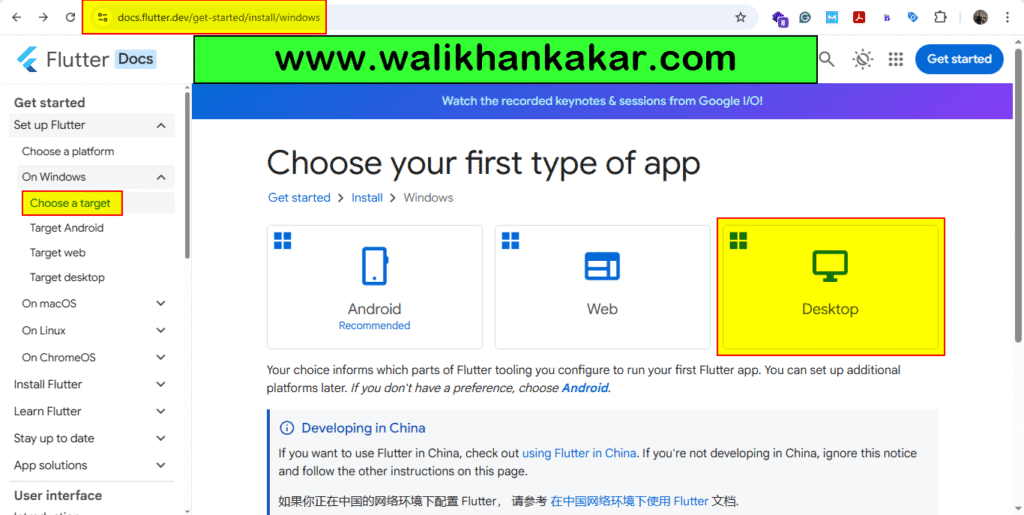
2: Download the desktop version.
3: Download the Flutter SDK.
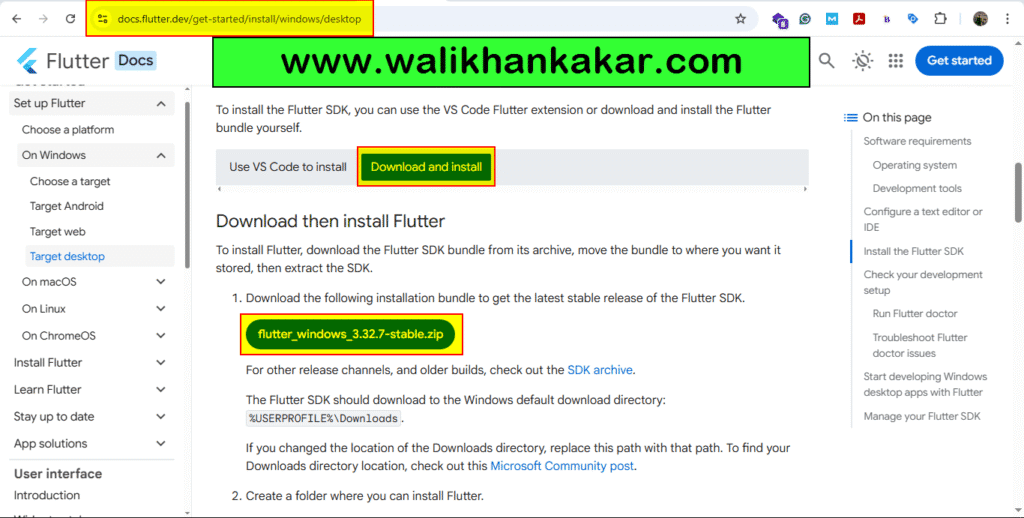
4: Extract the Flutter download SDK zip file.
5: Open Command Prompt.
6: Go to This PC, then go to Properties.
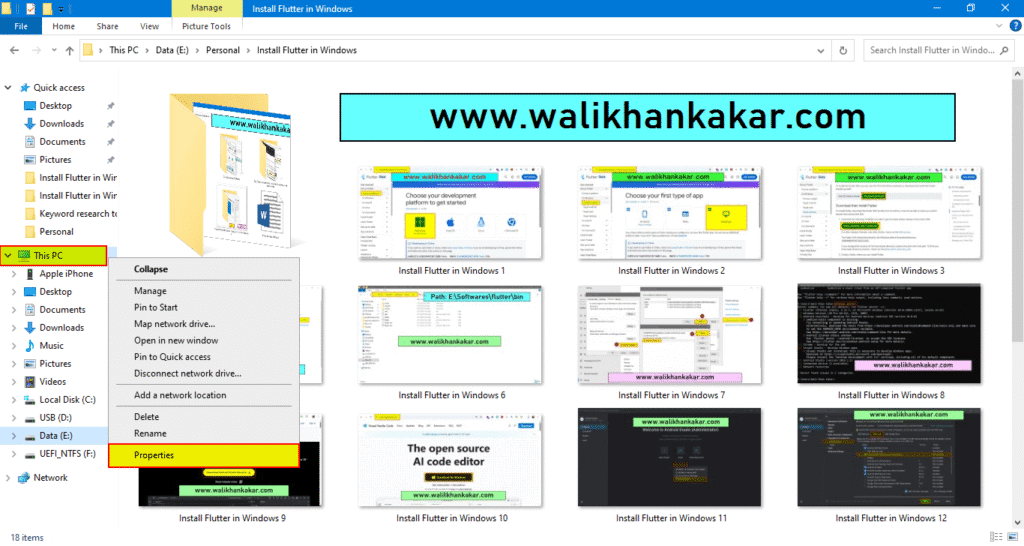
7: Open Advanced System Settings, then open Environment Variables.
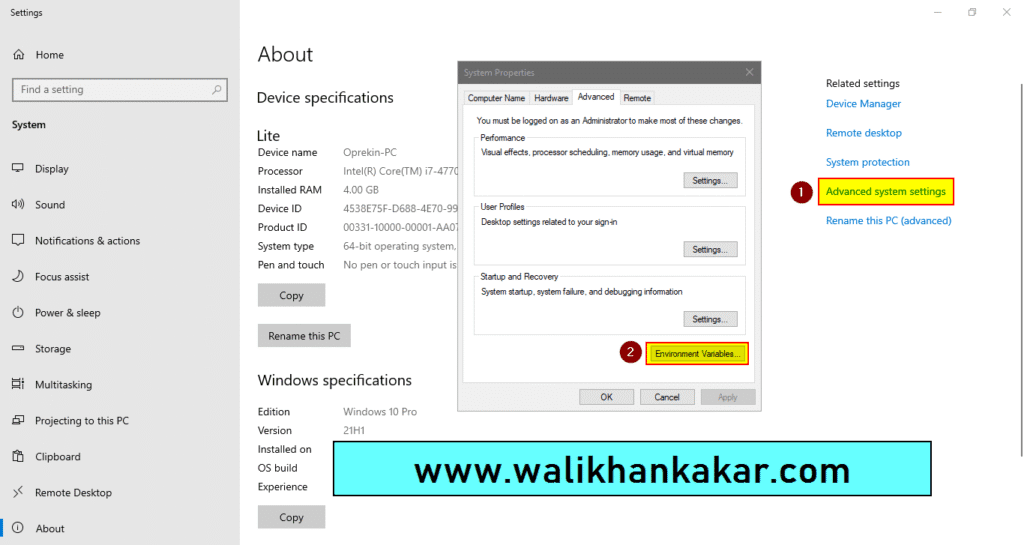
8: Open the Path Edit and then add the new Path for Flutter SDK.
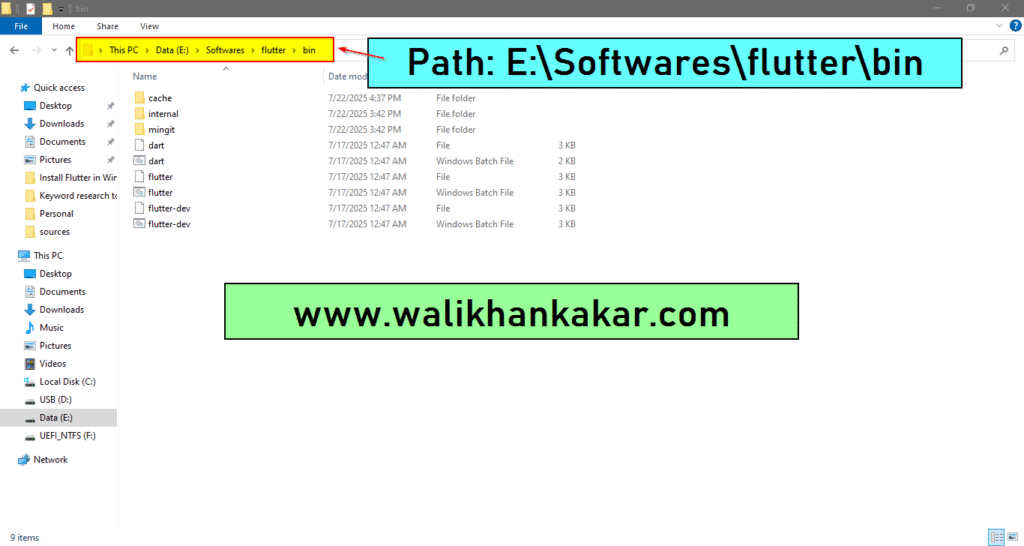
9: Go to the extracted Flutter SDK zip file folder, then open the bin folder.
10: Copy the bin folder path, then paste it into the new path.
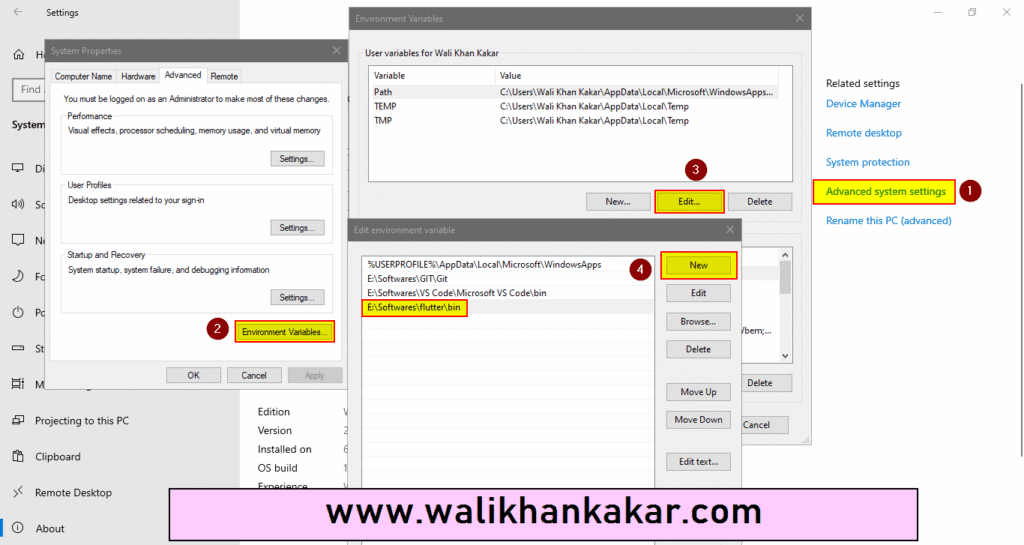
11: Ok, it.
12: Open the Command Prompt, then run Flutter.
Command: flutter
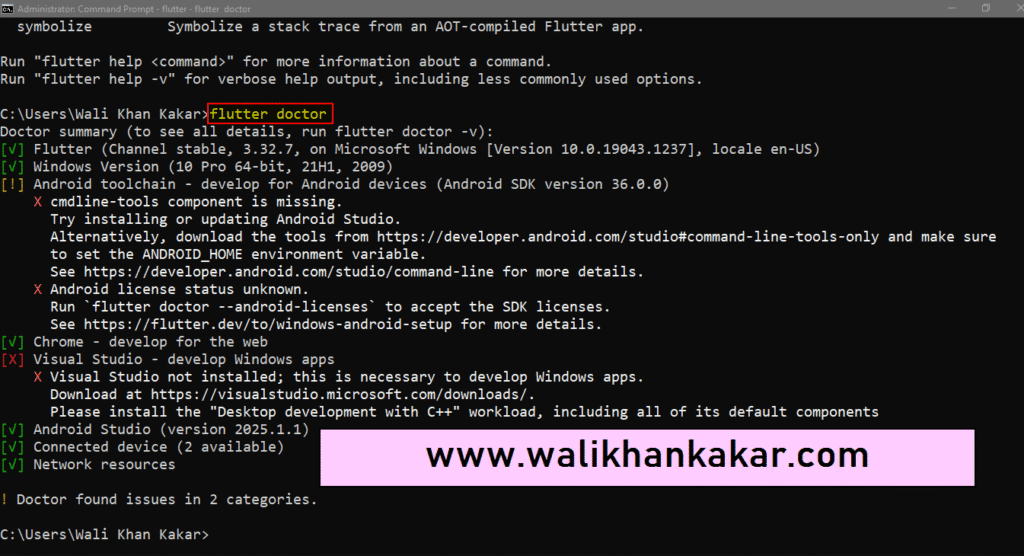
13: Check Flutter installation requirements in Command Prompt.
Command: flutter doctor
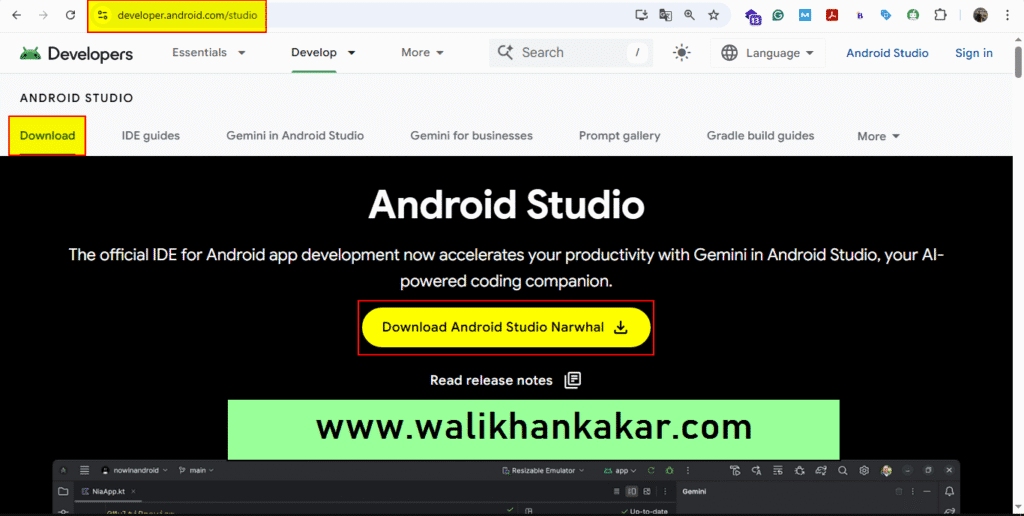
14: Download Android Studio.
Website: https://developer.android.com/studio
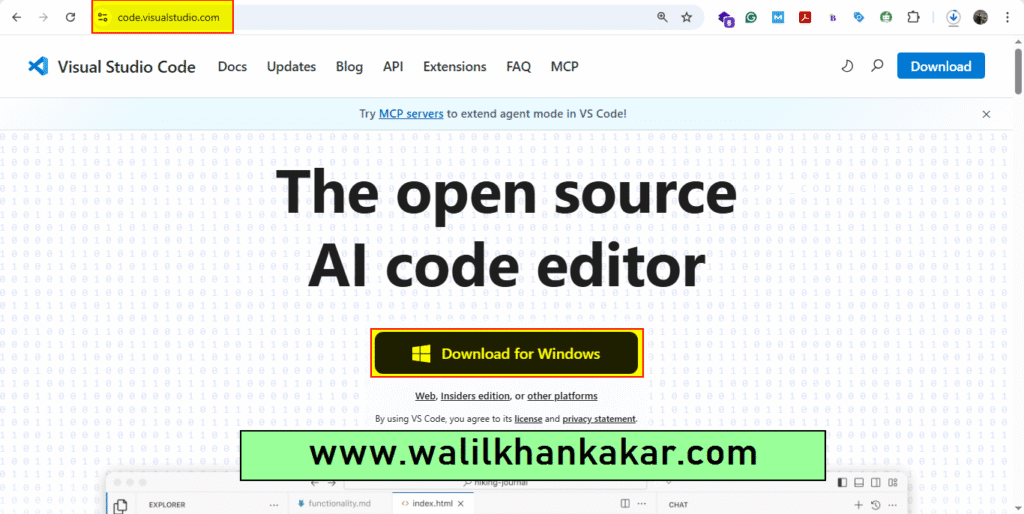
15: Download Visual Studio Code.
Website: https://code.visualstudio.com/
16: Install Android Studio.
17: Check again that Flutter is missing requirements in the Command Prompt.
Command: flutter doctor
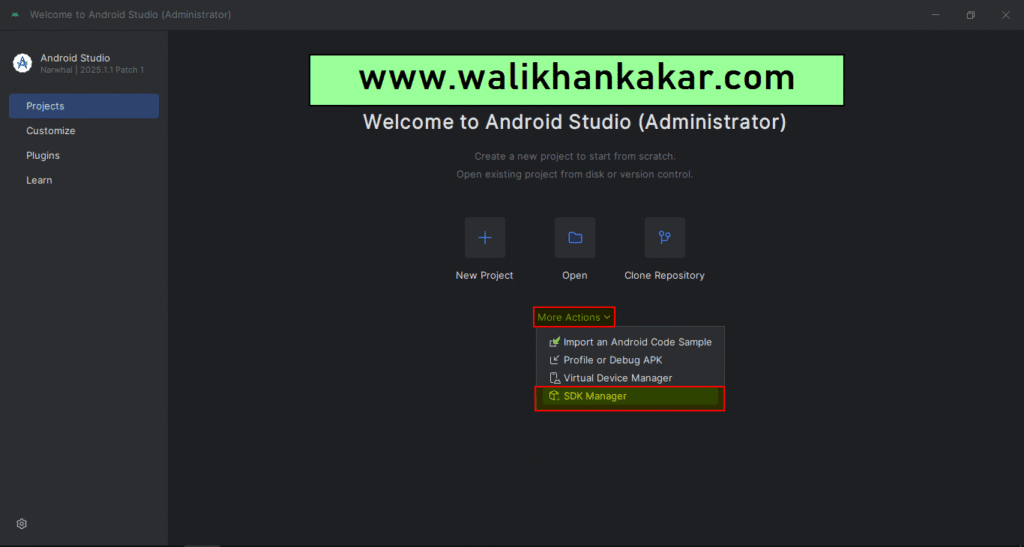
18: Open Android Studio, then go to More Actions and open SDK Manager.
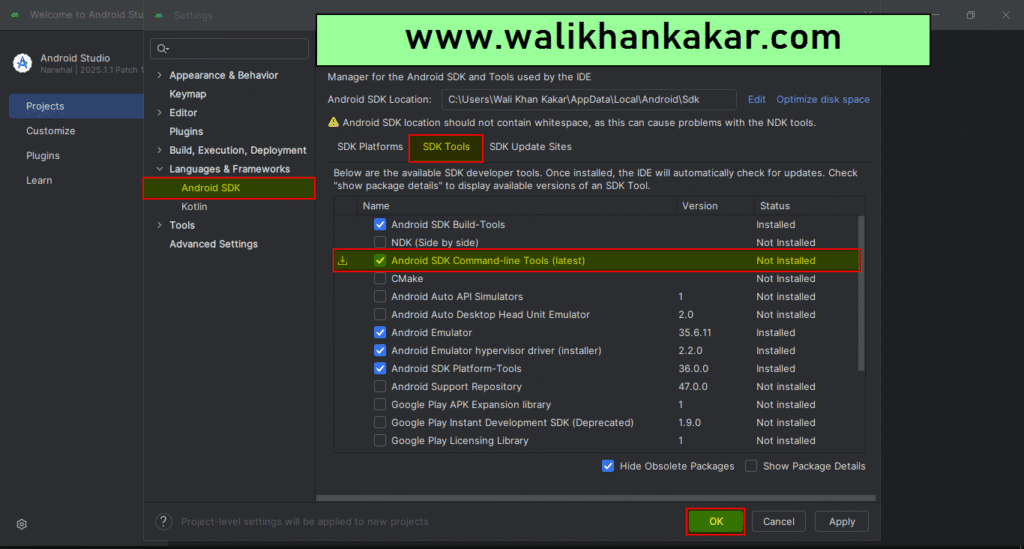
19: Install Android SDK Command-line Tools (latest).
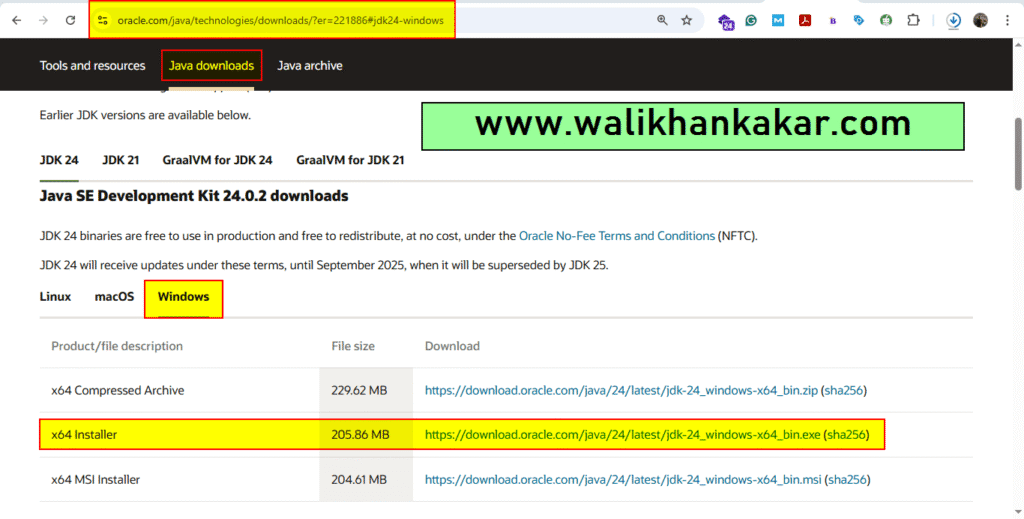
20: Download and install Java.
Website: https://www.oracle.com/technetwork/java/javase/downloads/
21: Follow this command.
Command: flutter doctor –android-licenses
22: Accept all licenses.
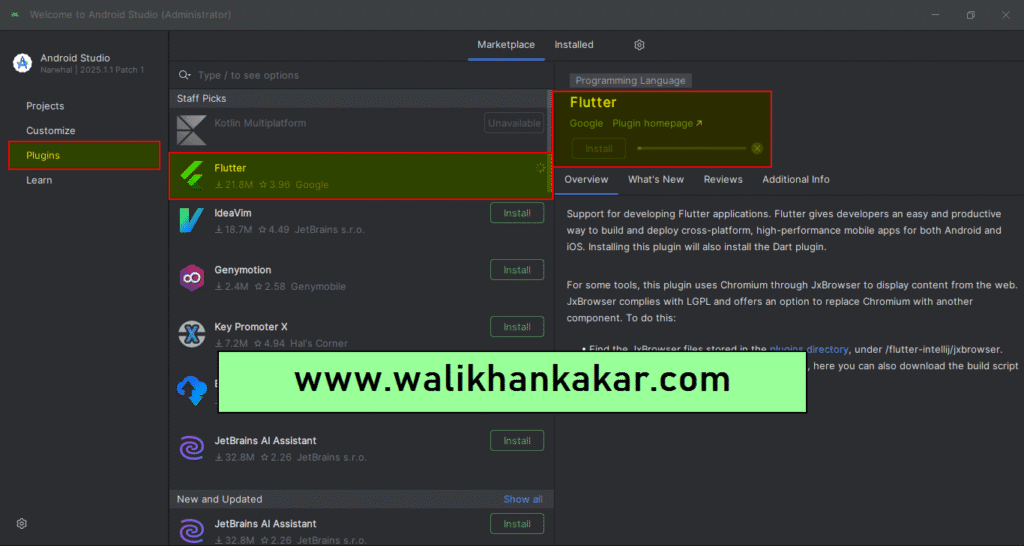
23: Install Flutter in Android Studio.
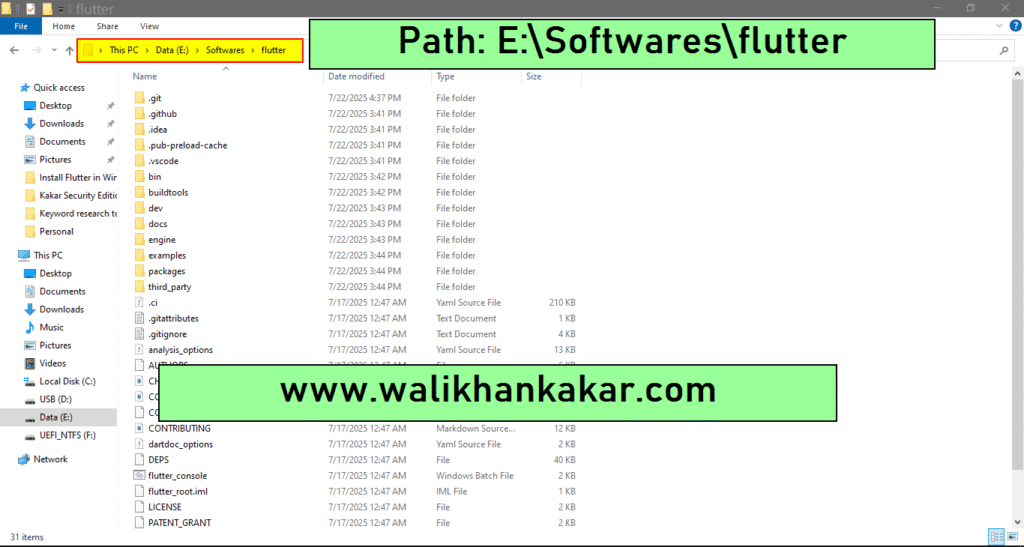
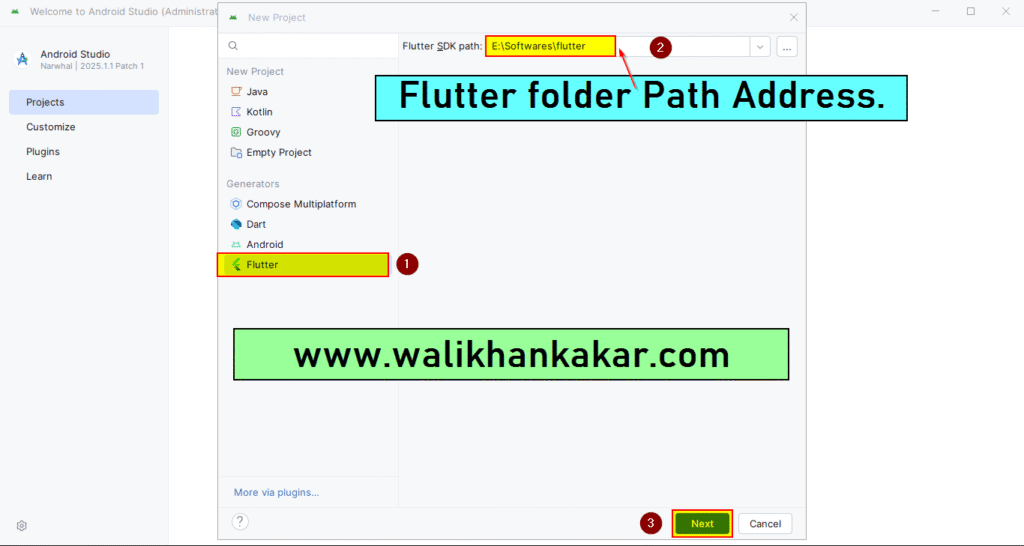
24: Give Flutter SDK Path.
25: Go to where you installed Flutter and copy that path.
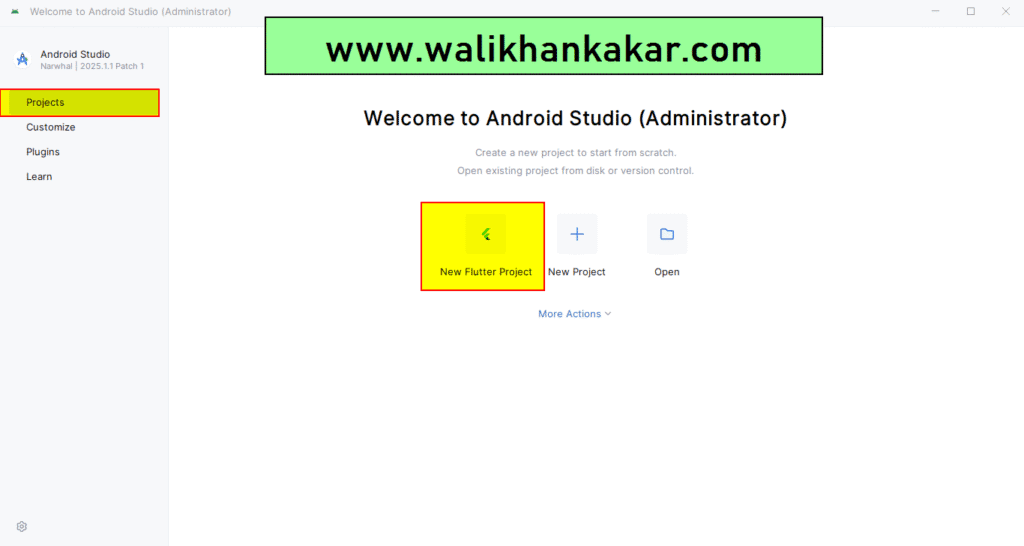
26: Open the New Flutter Project.
27: Paste the Flutter Path.
28: Create a new Flutter project.
29: Open Command Prompt.
30: Go to the Desktop in Command Prompt.
Command: cd desktop
31: Create a new folder on the Desktop or in the Desk manually.
32: Copy the new folder path and paste it into the Command Prompt.
Example: cd E:\Flutter projects
30: Create new Flutter projects in Command Prompt.
Command: flutter create walikhankakar
31: Install the Dart plugin in Android Studio.
32: Install Visual Studio Code.
33: Open Visual Studio Code.
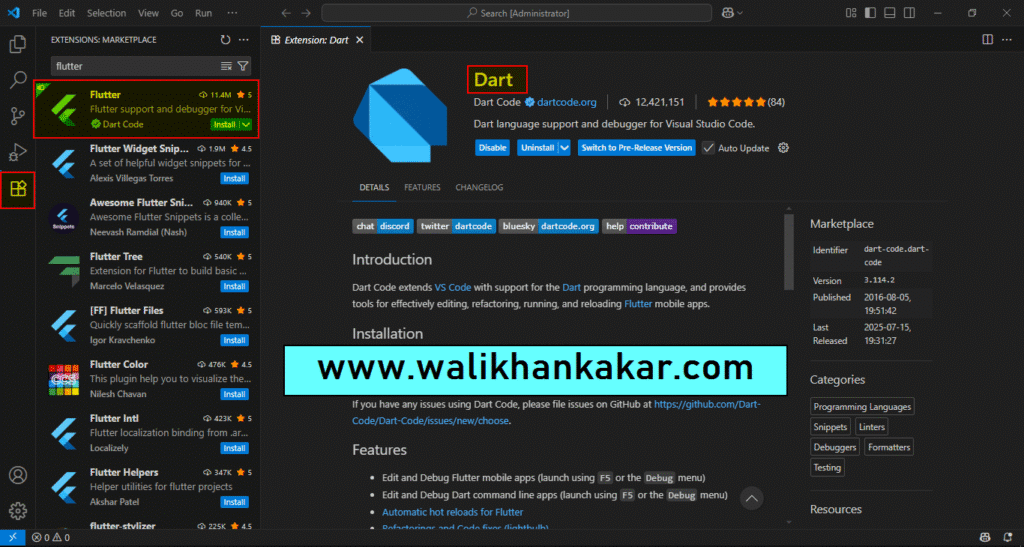
34: Install Dart and Flutter extensions in Flutter.