
MySQL wildcard
MySQL LIKE:
MySQL LIKE operator is used in a WHERE clause to search for a specified pattern in a column.
1: The percent sign (%) represents zero, one, or multiple characters.
2: The underscore sign (_) represents one, single character.
Patterns:
| LIKE Operator | Description |
| LIKE ‘a%’ | Starts with “a” |
| LIKE ‘%a’ | End with “a” |
| LIKE ‘%or%’ | Have “or” in any position. |
| LIKE ‘_r%’ | Have “r” in the second position. |
| LIKE ‘a_%’ | Starts with “a” and are at least 2 characters in length. |
| LIKE ‘a__%’ | Starts with “a” and are at least 3 characters in length. |
| LIKE ‘a%0’ | Starts with “a” and ends with “0” |
1: Open the MySQL Workbench.
2: Select the Database.
Command: use walikhankakar
3: Execute the command.
Shortcut key: Ctrl + Enter
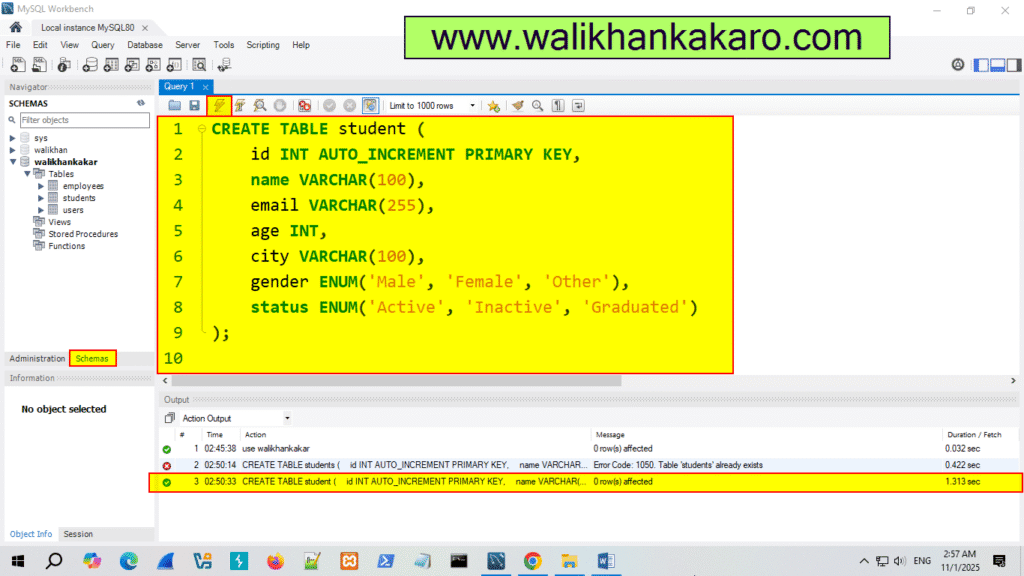
4: Create a new Table.
Code: CREATE TABLE student (
id INT AUTO_INCREMENT PRIMARY KEY,
name VARCHAR(100),
email VARCHAR(255),
age INT,
city VARCHAR(100),
gender ENUM(‘Male’, ‘Female’, ‘Other’),
status ENUM(‘Active’, ‘Inactive’, ‘Graduated’)
);
5: Execute the command.
Shortcut key: Ctrl + Enter
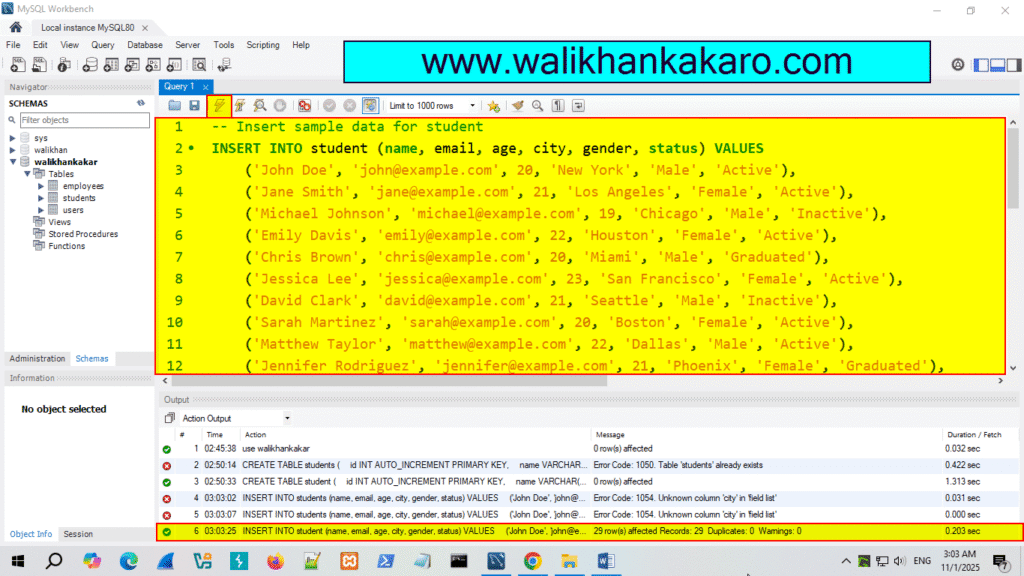
6: Insert the Data into the students.
Code: — Insert sample data for student
INSERT INTO student (name, email, age, city, gender, status) VALUES
(‘John Doe’, ‘john@example.com’, 20, ‘New York’, ‘Male’, ‘Active’),
(‘Jane Smith’, ‘jane@example.com’, 21, ‘Los Angeles’, ‘Female’, ‘Active’),
(‘Michael Johnson’, ‘michael@example.com’, 19, ‘Chicago’, ‘Male’, ‘Inactive’),
(‘Emily Davis’, ’emily@example.com’, 22, ‘Houston’, ‘Female’, ‘Active’),
(‘Chris Brown’, ‘chris@example.com’, 20, ‘Miami’, ‘Male’, ‘Graduated’),
(‘Jessica Lee’, ‘jessica@example.com’, 23, ‘San Francisco’, ‘Female’, ‘Active’),
(‘David Clark’, ‘david@example.com’, 21, ‘Seattle’, ‘Male’, ‘Inactive’),
(‘Sarah Martinez’, ‘sarah@example.com’, 20, ‘Boston’, ‘Female’, ‘Active’),
(‘Matthew Taylor’, ‘matthew@example.com’, 22, ‘Dallas’, ‘Male’, ‘Active’),
(‘Jennifer Rodriguez’, ‘jennifer@example.com’, 21, ‘Phoenix’, ‘Female’, ‘Graduated’),
(‘Daniel Anderson’, ‘daniel@example.com’, 20, ‘Austin’, ‘Male’, ‘Active’),
(‘Laura Wilson’, ‘laura@example.com’, 22, ‘Denver’, ‘Female’, ‘Inactive’),
(‘James Garcia’, ‘james@example.com’, 21, ‘San Diego’, ‘Male’, ‘Active’),
(‘Amanda Harris’, ‘amanda@example.com’, 22, ‘Portland’, ‘Female’, ‘Active’),
(‘Ryan Martin’, ‘ryan@example.com’, 20, ‘Atlanta’, ‘Male’, ‘Graduated’),
(‘Stephanie Thompson’, ‘stephanie@example.com’, 23, ‘Philadelphia’, ‘Female’, ‘Active’),
(‘Robert Jackson’, ‘robert@example.com’, 21, ‘Detroit’, ‘Male’, ‘Inactive’),
(‘Rachel White’, ‘rachel@example.com’, 20, ‘Minneapolis’, ‘Female’, ‘Active’),
(‘Christopher Martinez’, ‘christopher@example.com’, 22, ‘San Jose’, ‘Male’, ‘Active’),
(‘Emily Taylor’, ’emilyt@example.com’, 21, ‘Las Vegas’, ‘Female’, ‘Graduated’),
(‘Joshua Hernandez’, ‘joshua@example.com’, 20, ‘Salt Lake City’, ‘Male’, ‘Active’),
(‘Megan King’, ‘megan@example.com’, 23, ‘Charlotte’, ‘Female’, ‘Inactive’),
(‘Justin Lee’, ‘justin@example.com’, 20, ‘Tampa’, ‘Male’, ‘Active’),
(‘Melissa Scott’, ‘melissa@example.com’, 22, ‘Orlando’, ‘Female’, ‘Active’),
(‘Kevin Walker’, ‘kevin@example.com’, 21, ‘Nashville’, ‘Male’, ‘Graduated’),
(‘Hannah Green’, ‘hannah@example.com’, 20, ‘Kansas City’, ‘Female’, ‘Active’),
(‘Brandon Young’, ‘brandon@example.com’, 23, ‘Cleveland’, ‘Male’, ‘Inactive’),
(‘Olivia Perez’, ‘olivia@example.com’, 21, ‘Pittsburgh’, ‘Female’, ‘Active’),
(‘Tyler Harris’, ‘tyler@example.com’, 22, ‘St. Louis’, ‘Male’, ‘Active’);
7: Execute the command.
Shortcut key: Ctrl + Enter
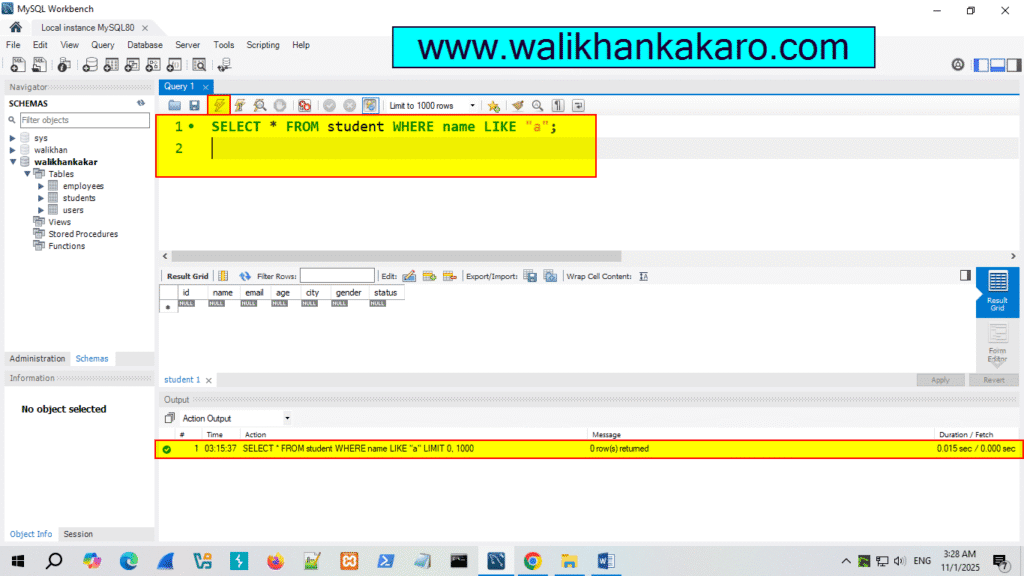
8: Check the name that starts with A.
Code: SELECT * FROM student WHERE name LIKE “a”;
9: Execute the command.
Shortcut key: Ctrl + Enter
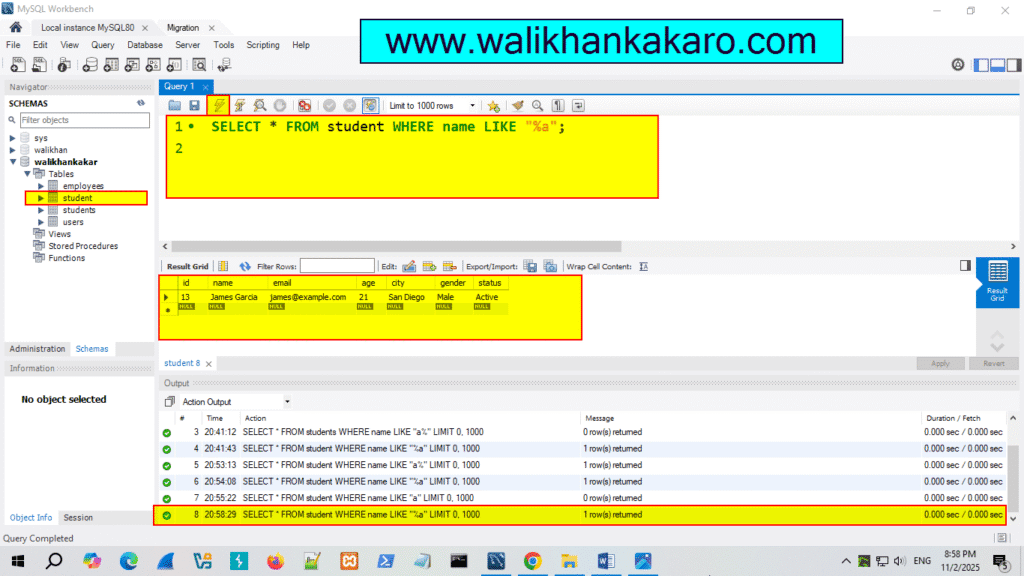
10: Check the names that end with A.
Code: SELECT * FROM student WHERE name LIKE “%a”;
11: Execute the command.
Shortcut key: Ctrl + Enter
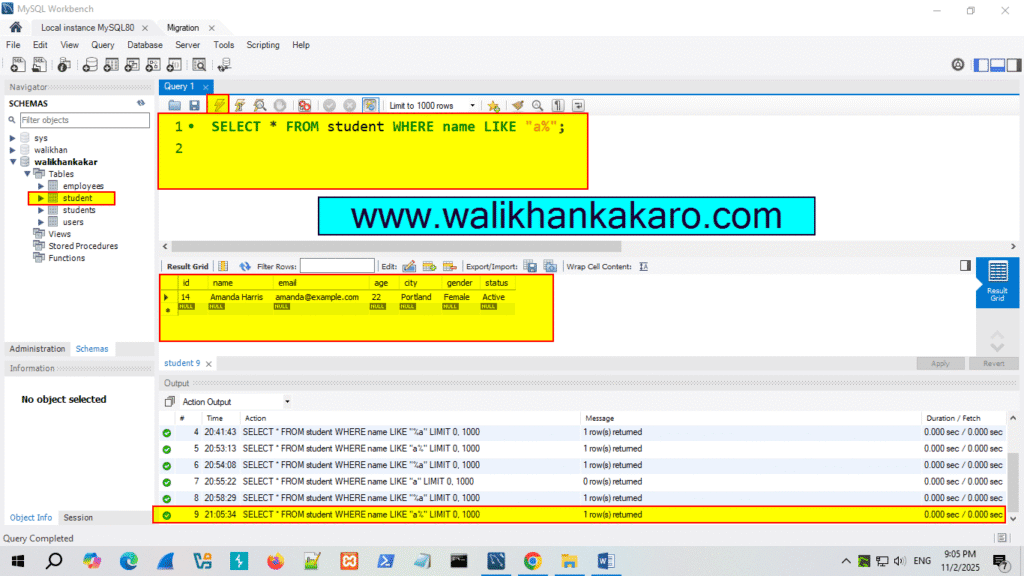
12: Check the names that start with the letter A.
Code: SELECT * FROM student WHERE name LIKE “a%”;
13: Execute the command.
Shortcut key: Ctrl + Enter
14: Check the names at the start, in the middle, or at the end.
Code: SELECT * FROM student WHERE name LIKE “%a%”;
15: Execute the command.
Shortcut key: Ctrl + Enter