Table of Contents
Install MySQL in Windows
1: Download the MySQL community.
Website: https://dev.mysql.com/downloads/installer/
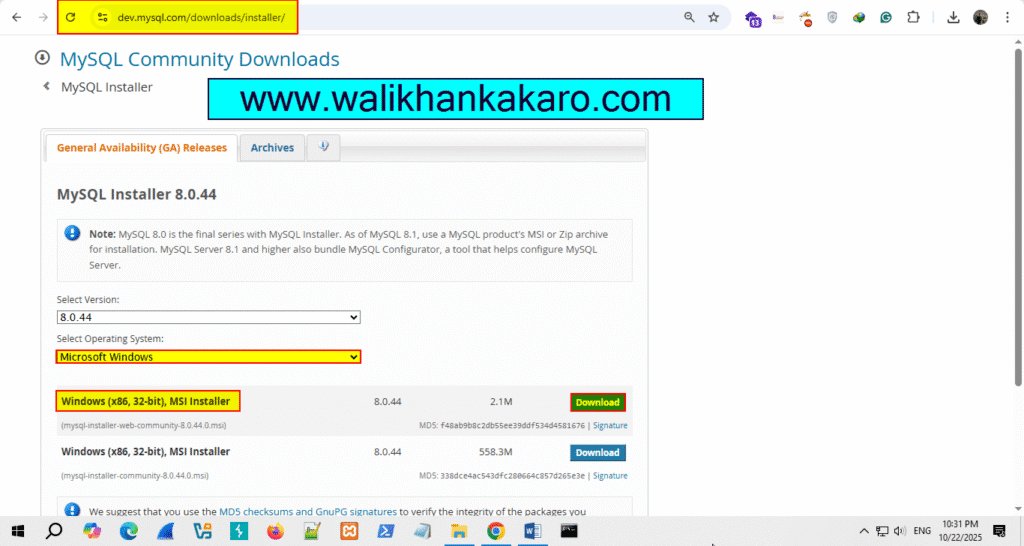
2: Install the MySQL community.
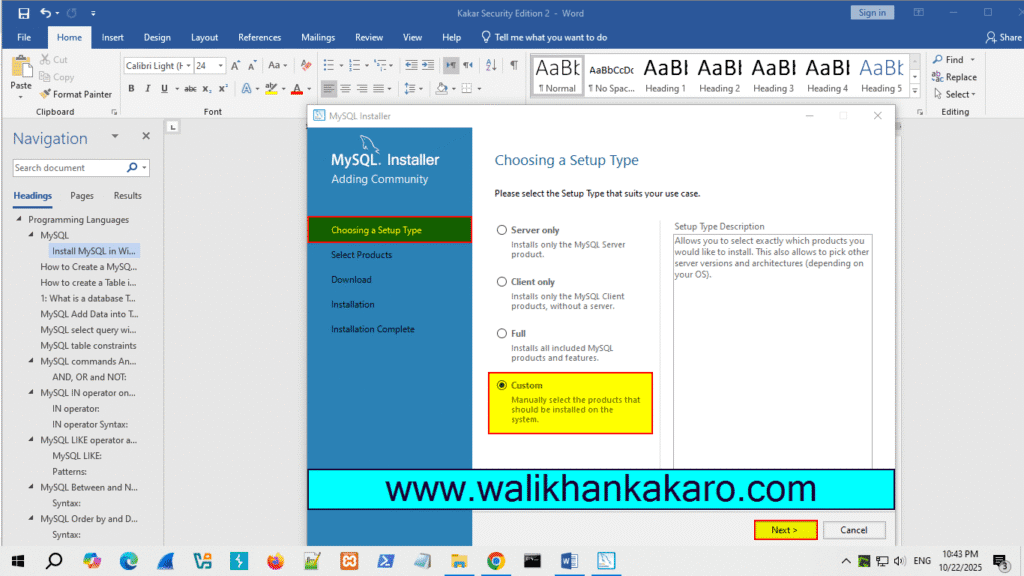
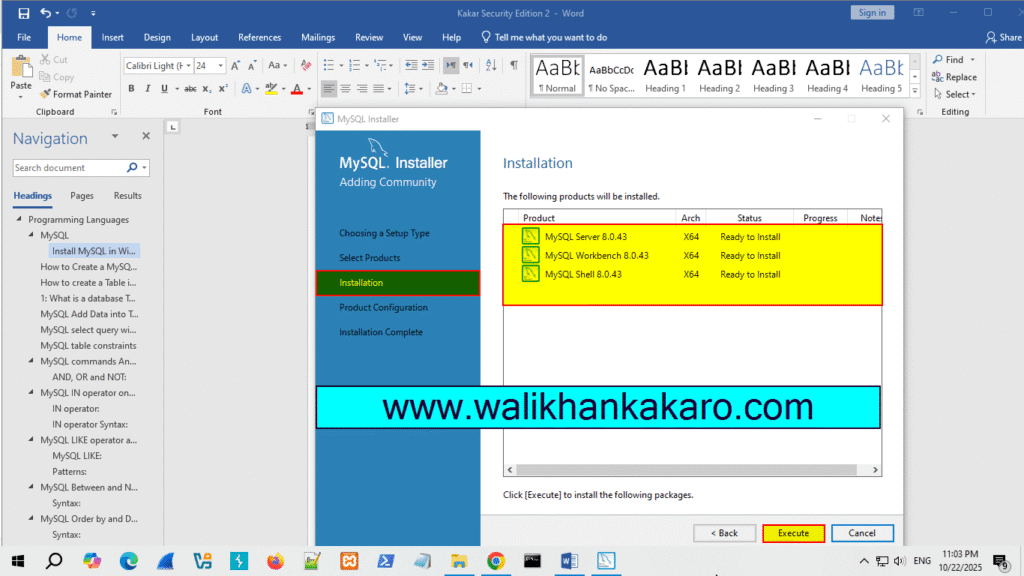
3: Select the Custom option.
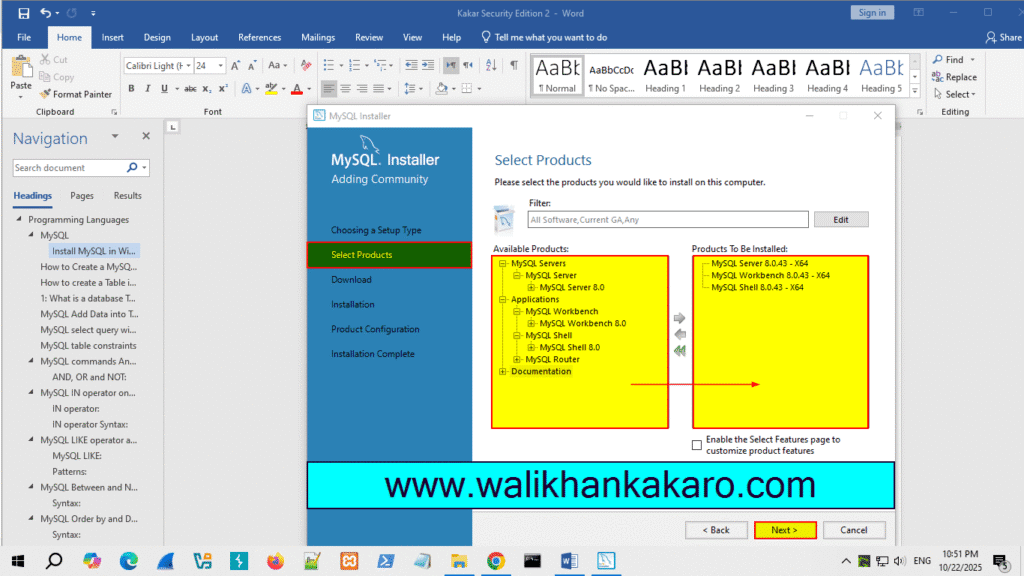
4: Select the Products.
5: Execute the process.
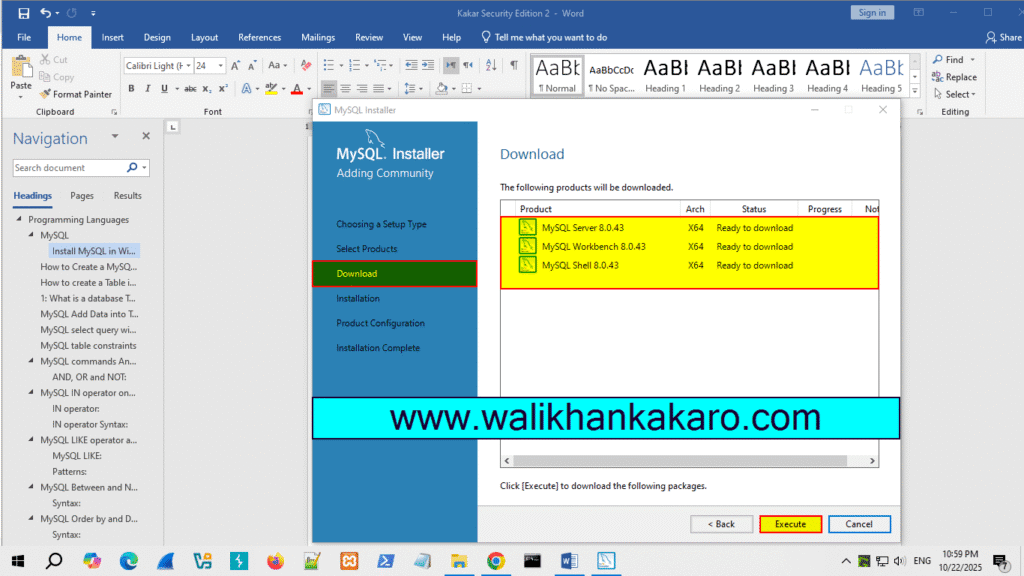
6: Execute the installation process.
7: Off the XAMP server if you installed.
8: Next, Next, Next, and Next the Process.
9: Make a new password.
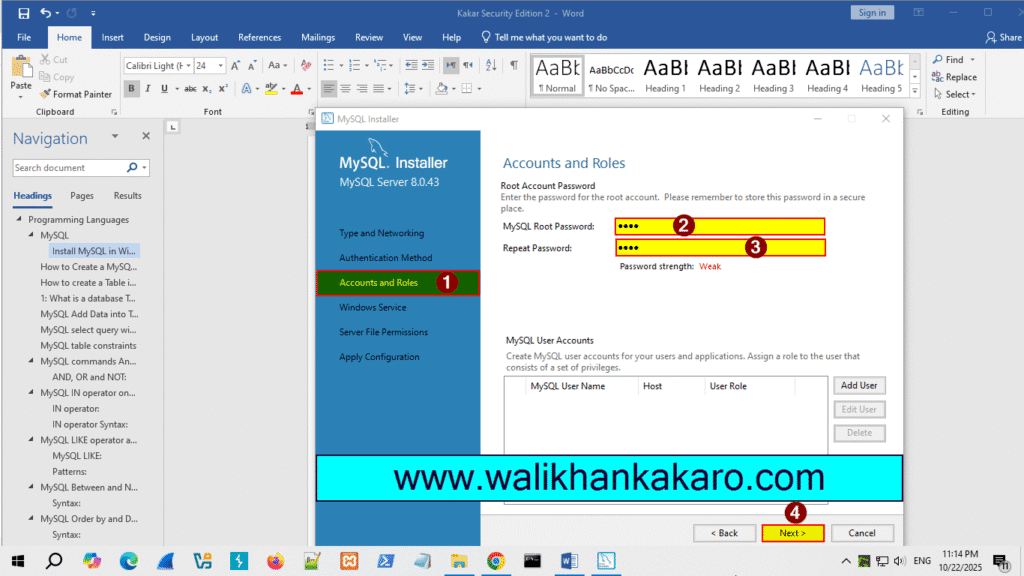
10: Next, and Next the process.
11: Execute the configuration files.
12: Finish the MySQL Installation.
13: MySQL Workbench and MySQL Shell will automatically be launched.
14: Open the MySQL server.
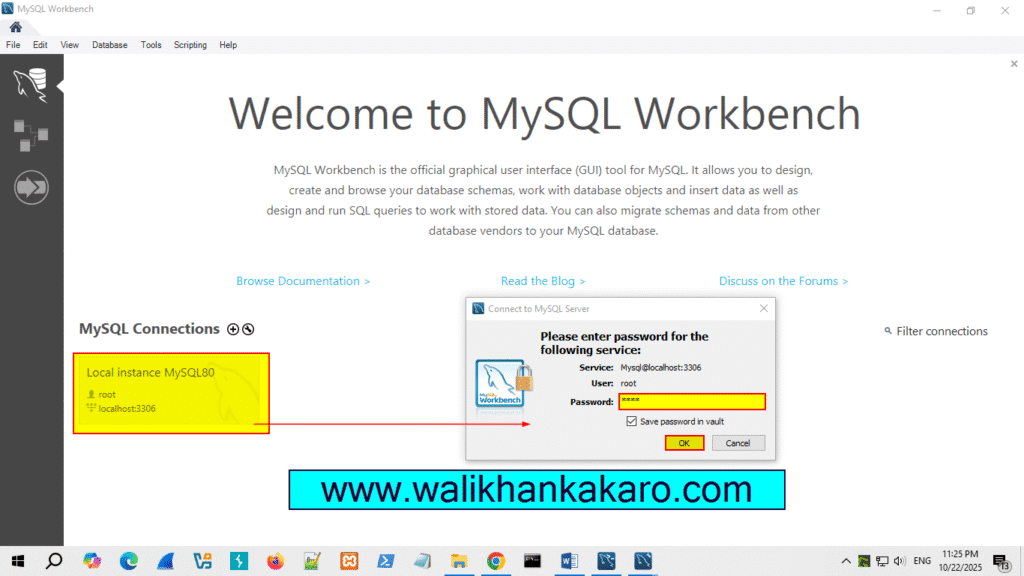
15: Open the Command Prompt.
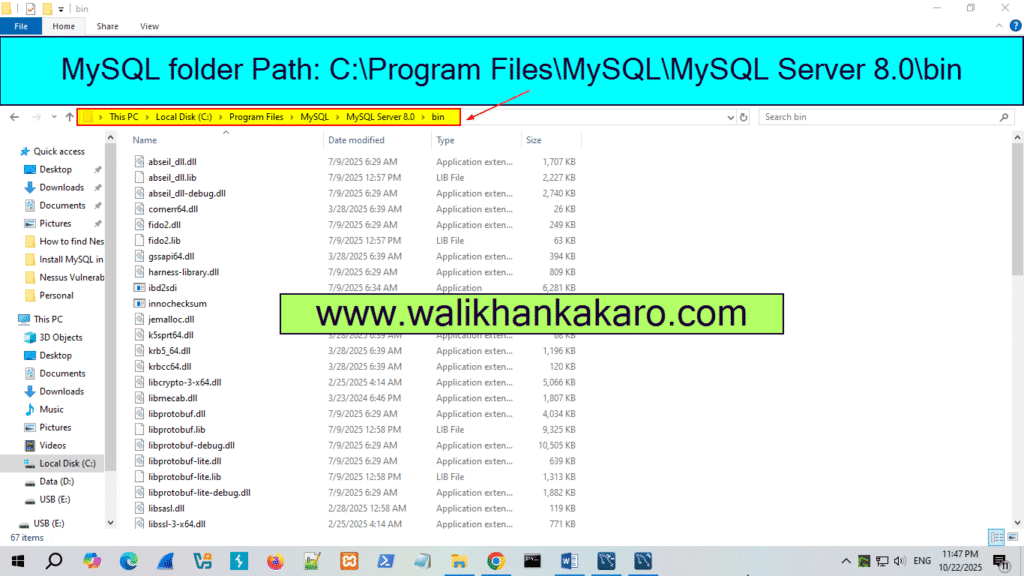
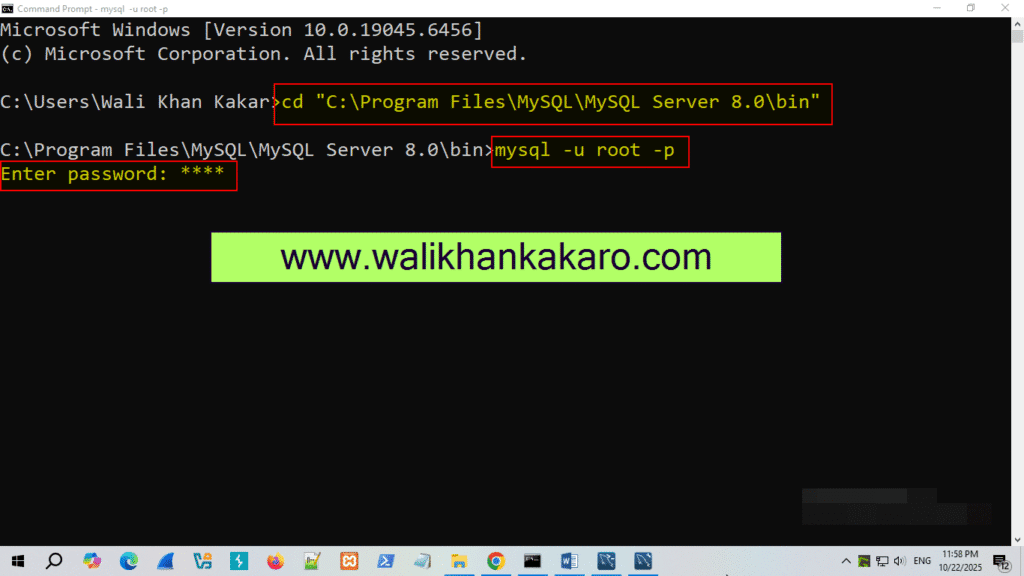
16: Go to the installed MySQL folder.
17: Open the MySQL folder, open the MySQL Server, and then open the bin folder, and then copy the path.
Example: C:\Program Files\MySQL\MySQL Server8.0\bin
18: Open your server in the Command Prompt.
Command: mysql -u root -p
19: Give your MySQL server password.
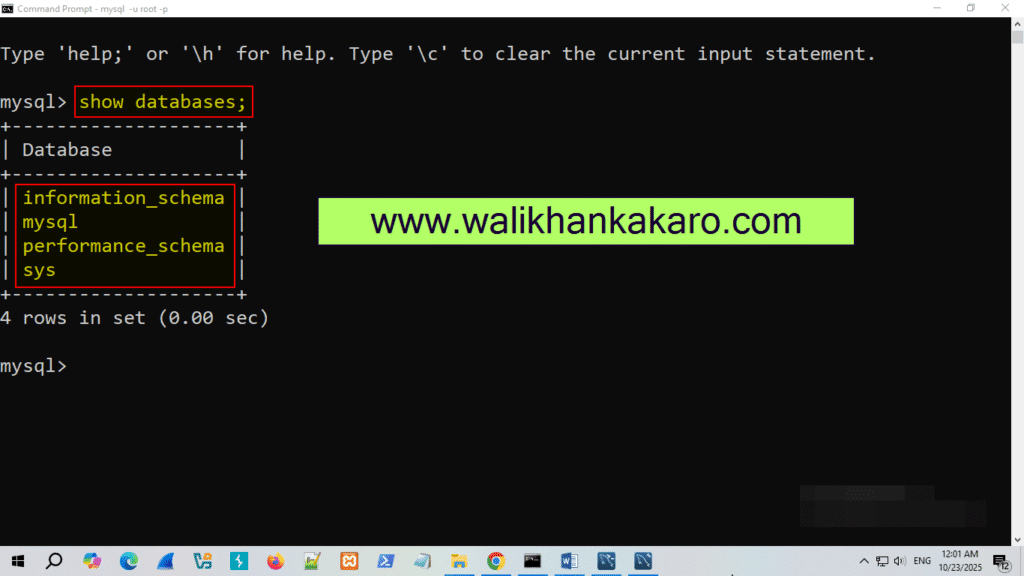
20: Check the MySQL default Databases in the Command Prompt.
Command: show databases;
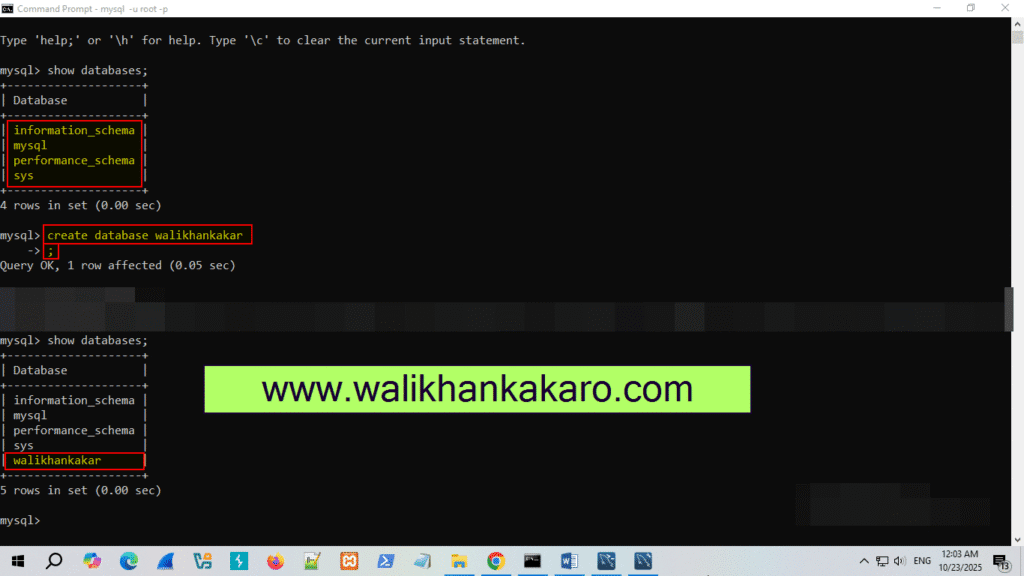
21: Create a new database.
Command: create database walikhankakar
22: To execute.
Command: ;
23: Open the walikhankakar database.
Command: use walikhankakar