
Table of Contents
Virtual servers
Install WampServer
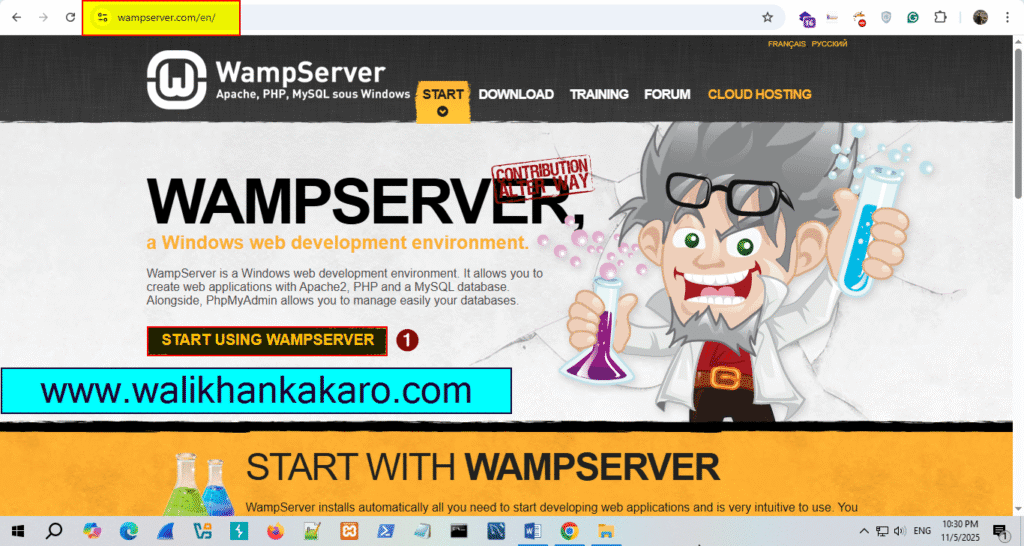
1: Go to the WampServer website.
Website: https://www.wampserver.com/en/
2: Click on Start using WampServer.
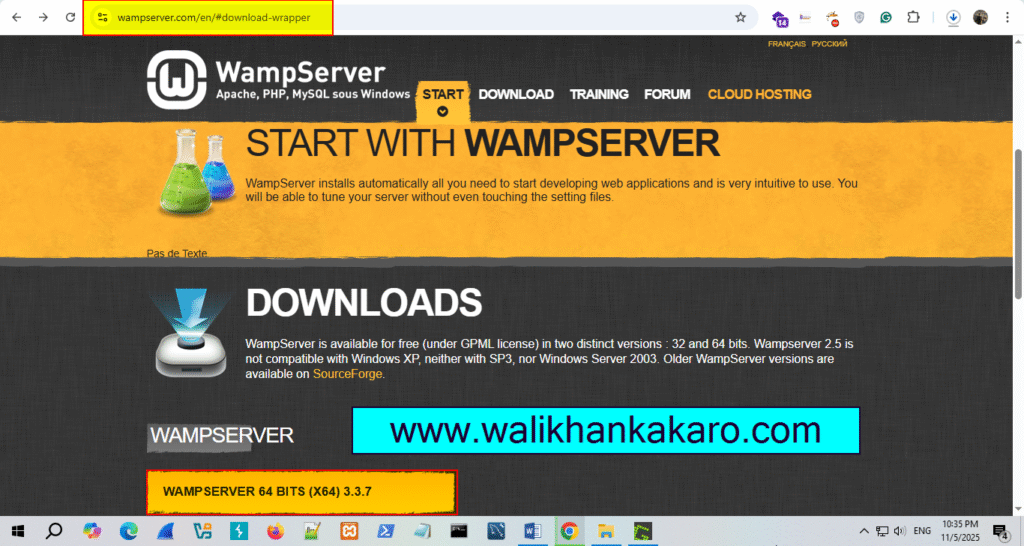
3: Download WampServer according to your PC requirements.
Download Link: https://www.wampserver.com/en/#download-wrapper
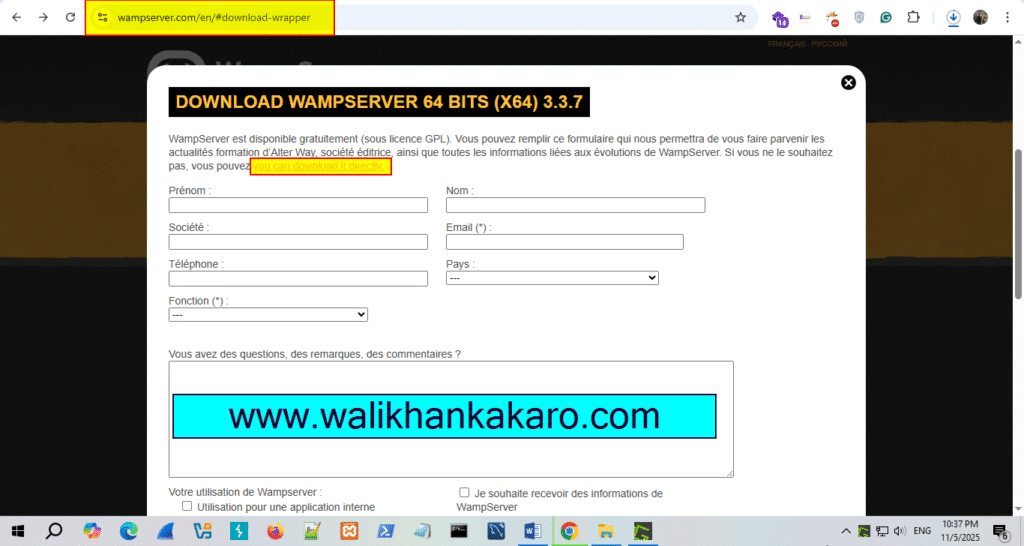
4: Just click, on you can download it directly.
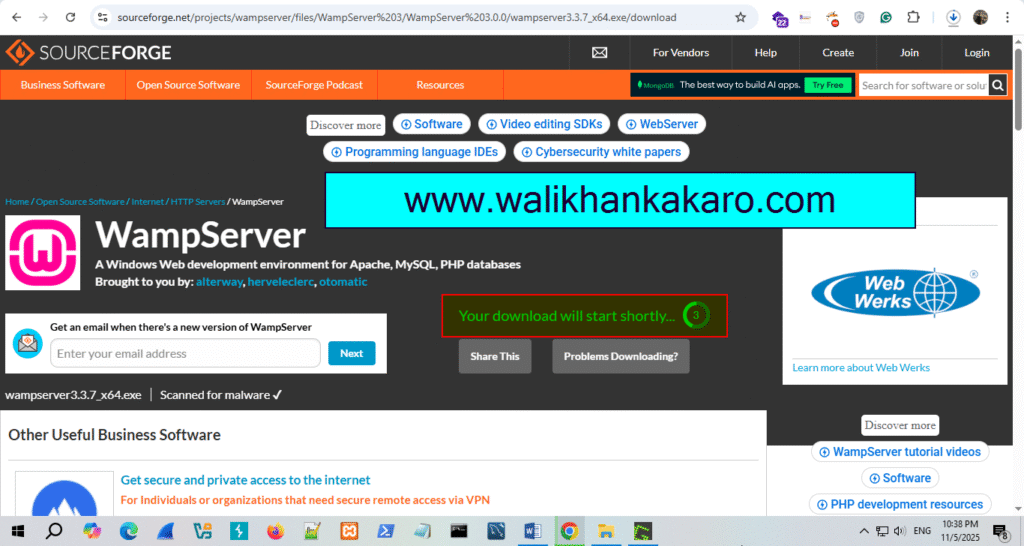
5: Download it.
6: Install WampServer on Windows.
7: Install all these packages.
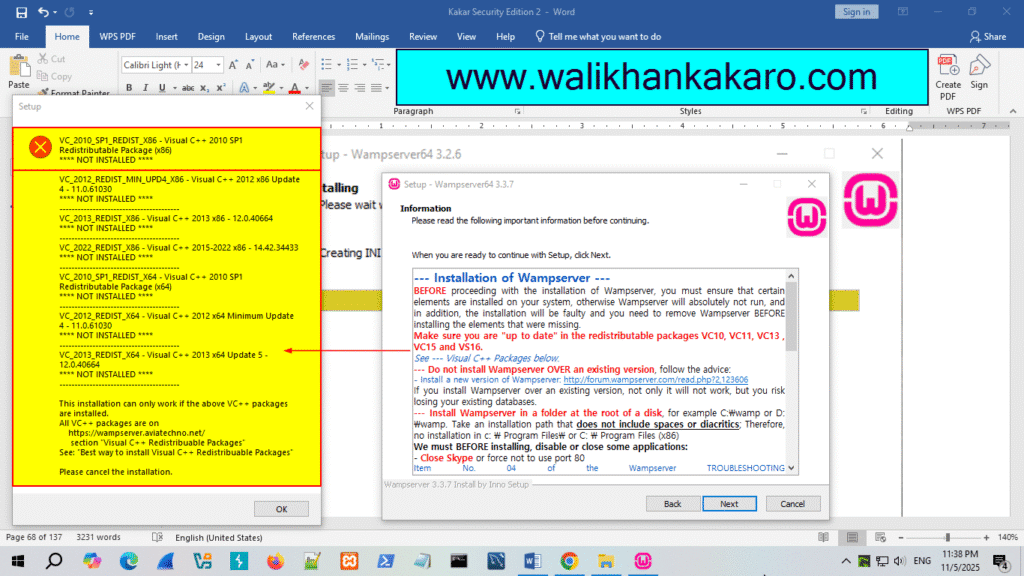
8: Make settings default.
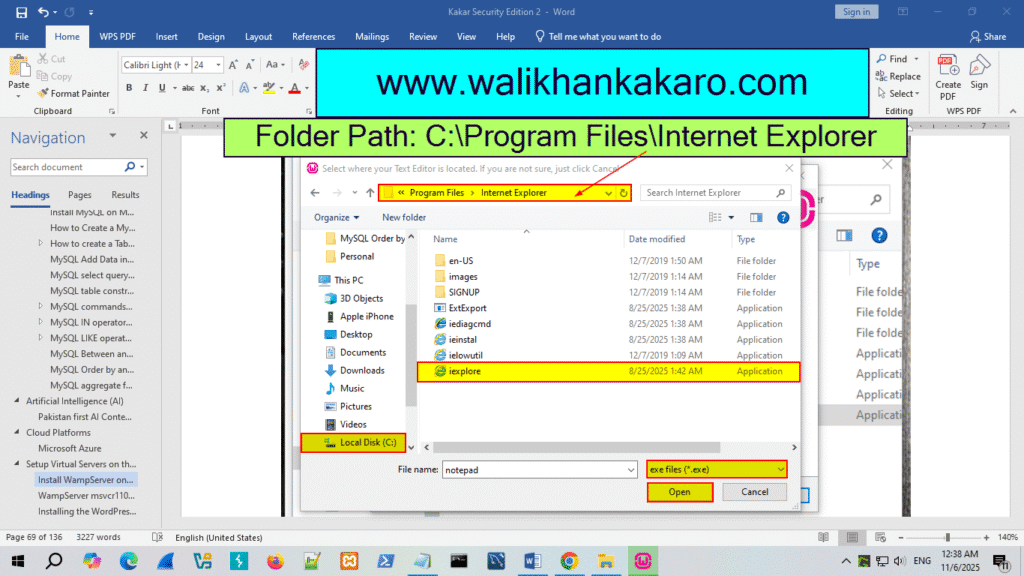
10: Open WampServer.
WampServer msvcr110.dll is missing from your computer
1: Download the Microsoft Visual C++ Redistributable.
Website: https://learn.microsoft.com/en-US/cpp/windows/latest-supported-vc-redist?view=msvc-170
2: Download VC Redist.

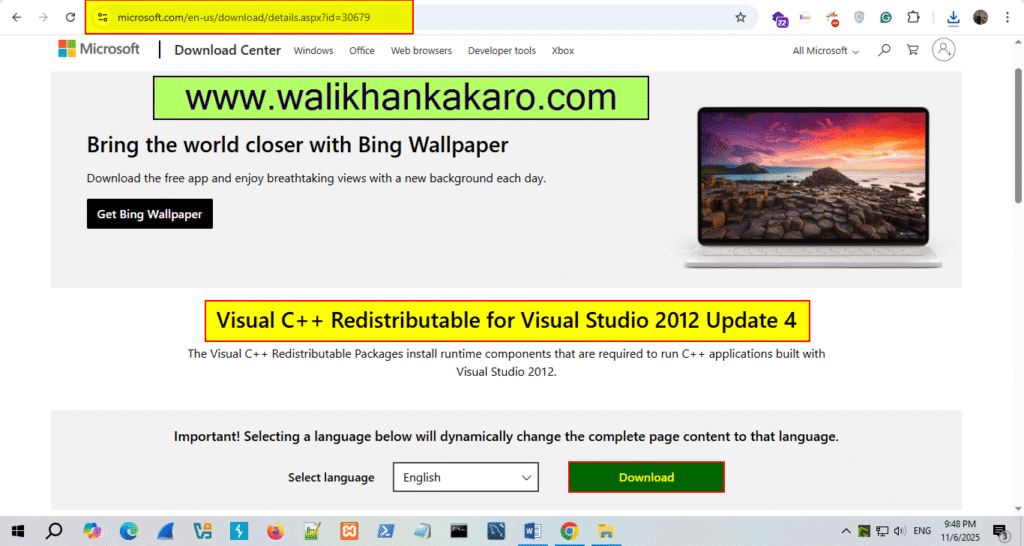
3: Install Visual C++ Redistributable for Visual Studio 2012 Update 4.
Website: https://www.microsoft.com/en-us/download/details.aspx?id=30679
4: Install Visual C++ 2013 Redistributable Package.
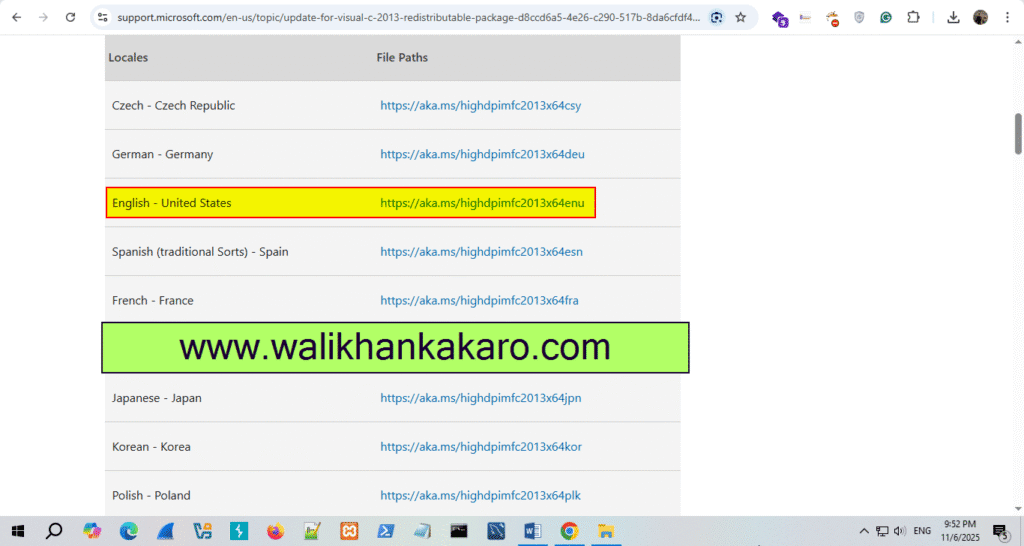
6: Also download this package and install it.
Download: https://aka.ms/vs/16/release/VC_redist.x64.exe
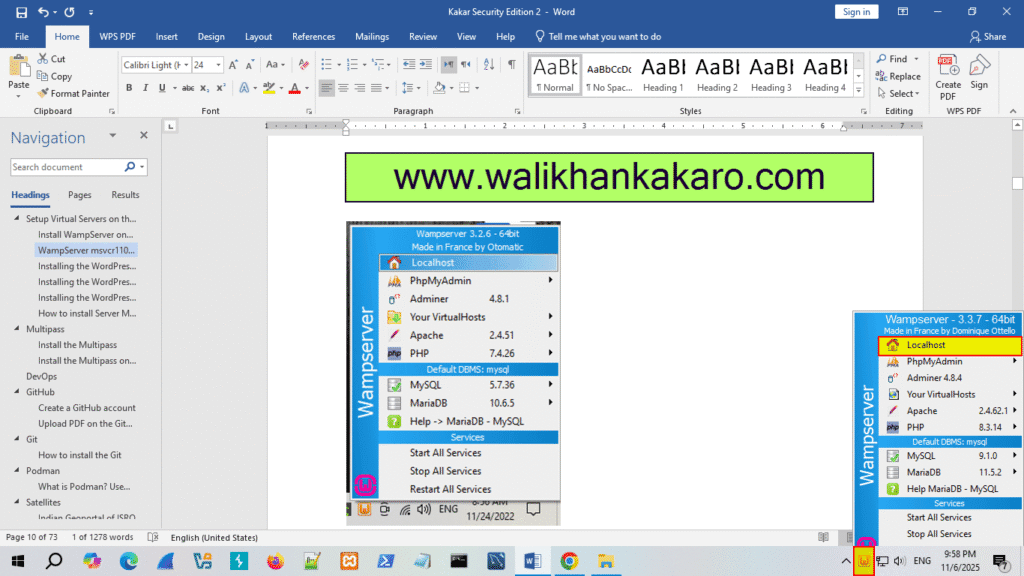
7: Open Localhost.
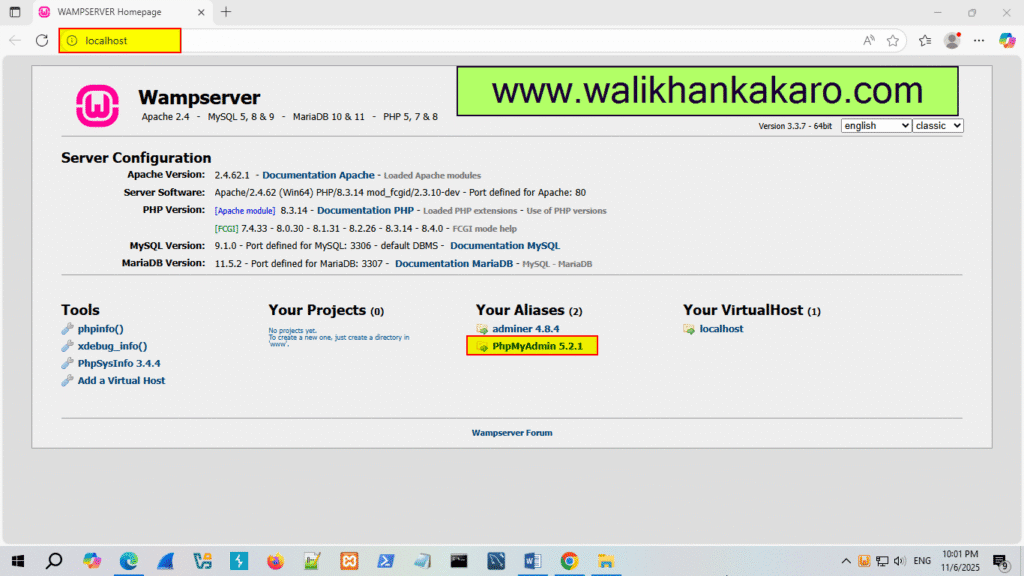
8: Go to Database PhpMyAdmin.
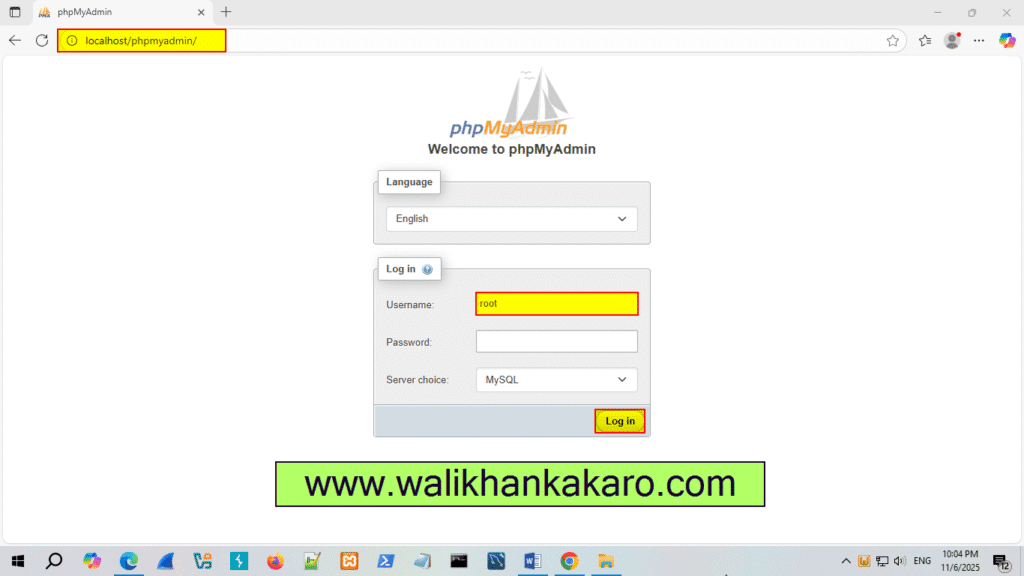
9: The PHP My Admin username doesn’t need a password.
Username: root
10: Create a Database.
How to install WordPress on localhost
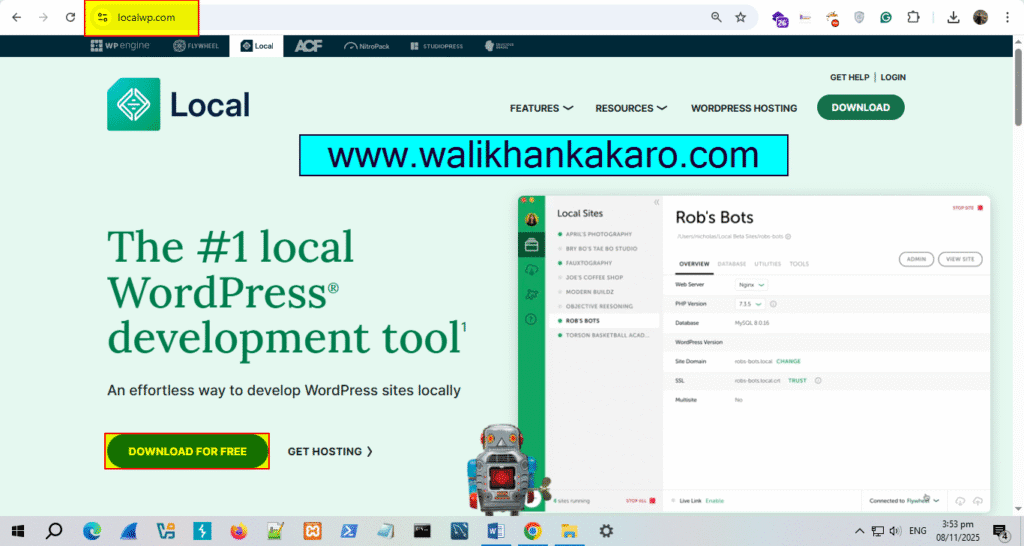
1: Download Local from the official website.
Website: https://localwp.com/
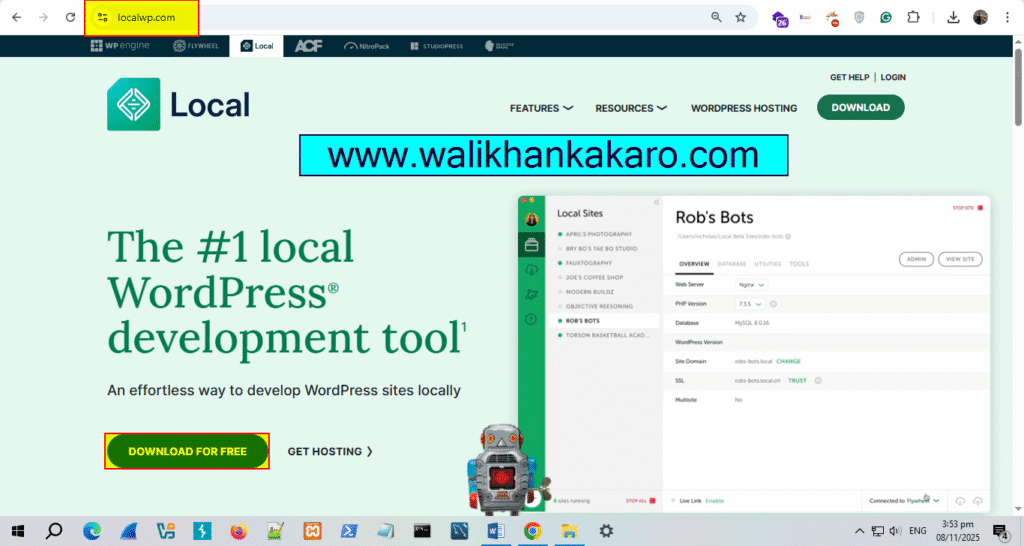
2: Install LocalWP.
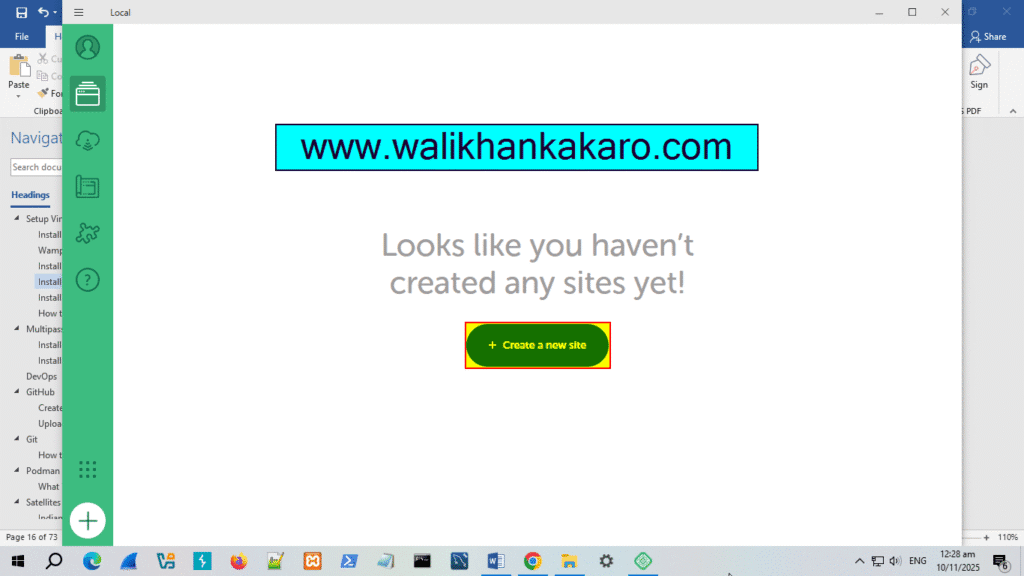
3: Create a new site.
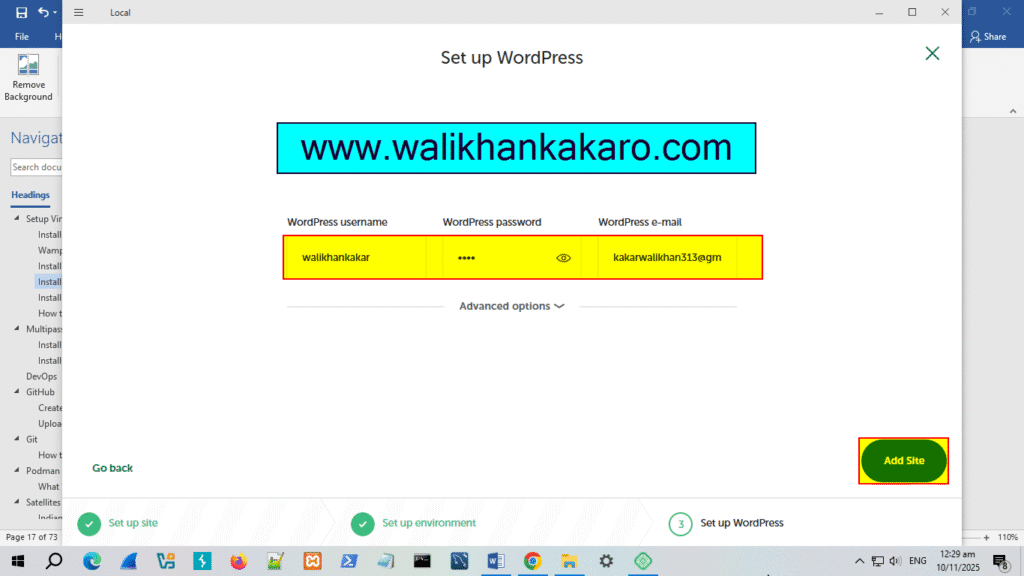
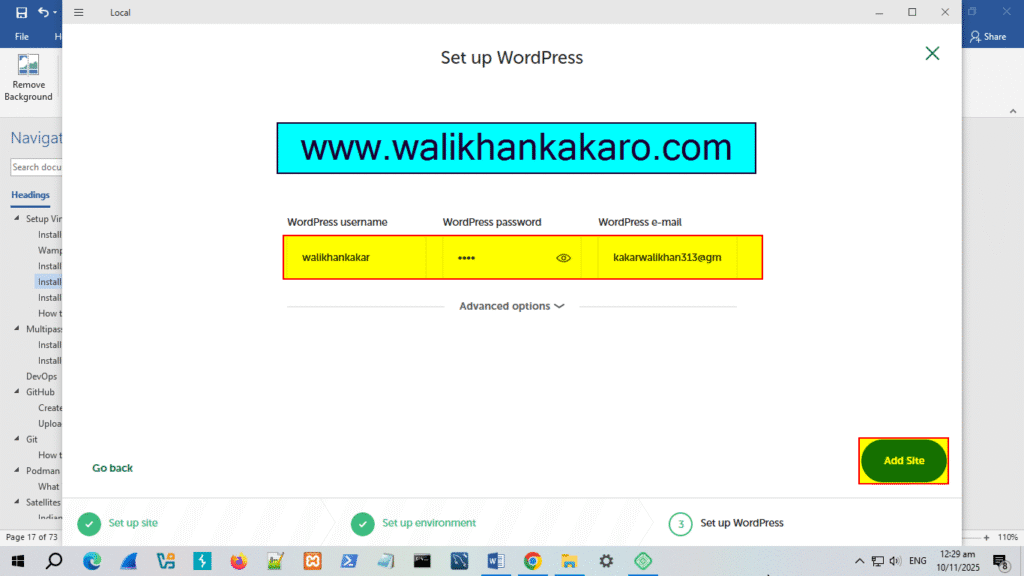
4: Fill in the details.
Local WordPress install on Mac
1: Download Local from the official website.
Website: https://localwp.com/
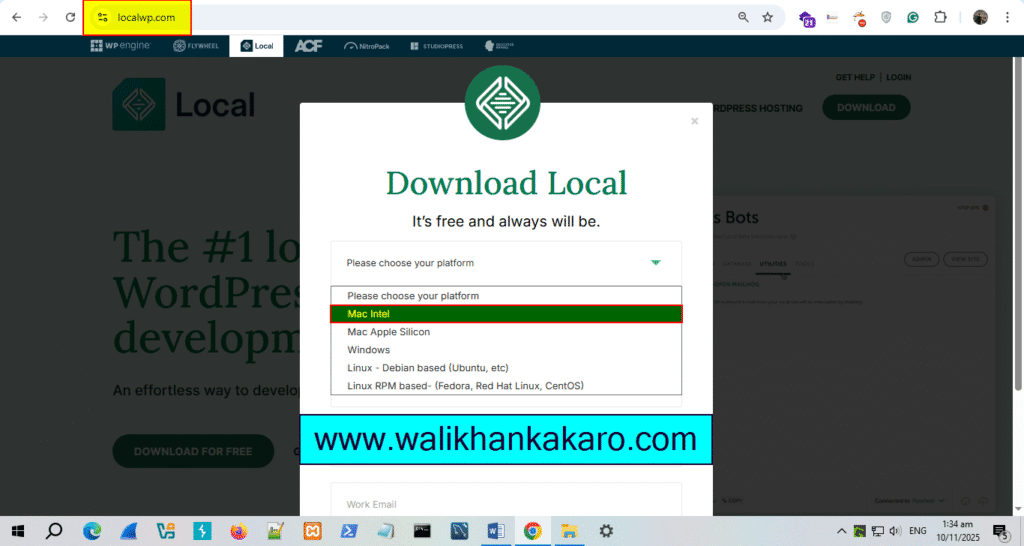
2: Select your Operating system platform.
3: Install LocalWP.
4: Create a new site.
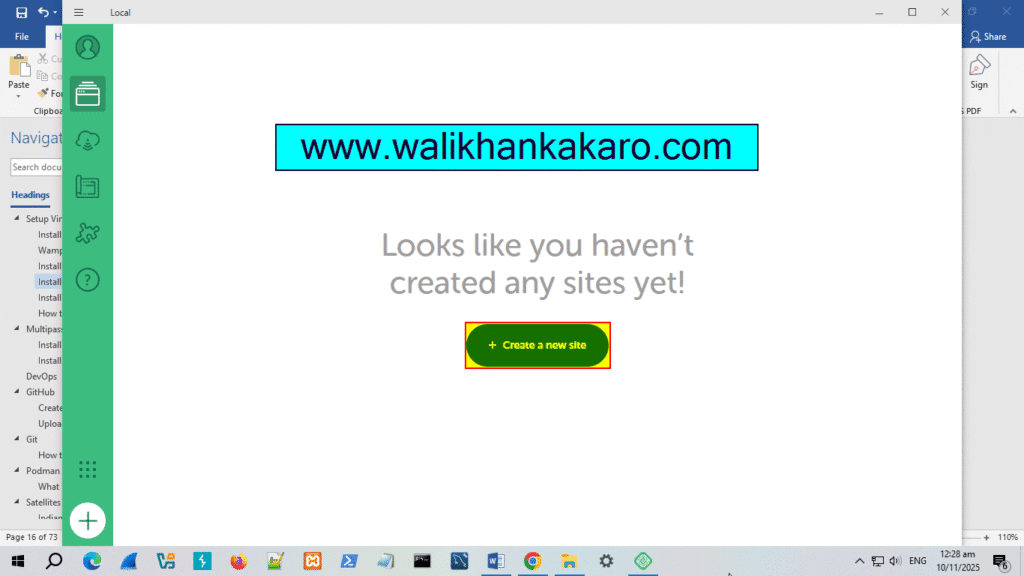
4: Fill in the details.
WordPress on Localhost XAMPP
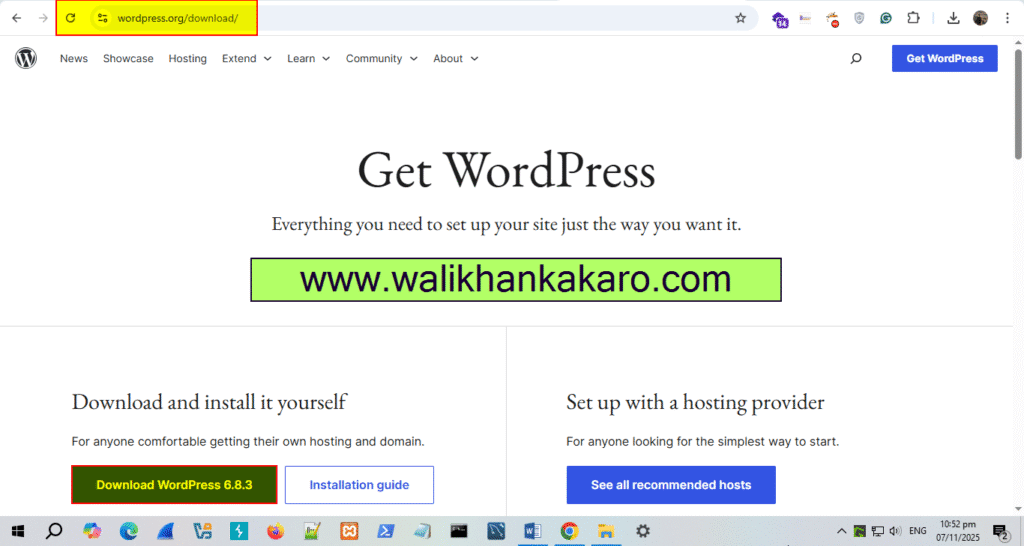
1: Download WordPress from the WordPress official website.
Website: https://wordpress.org/download/
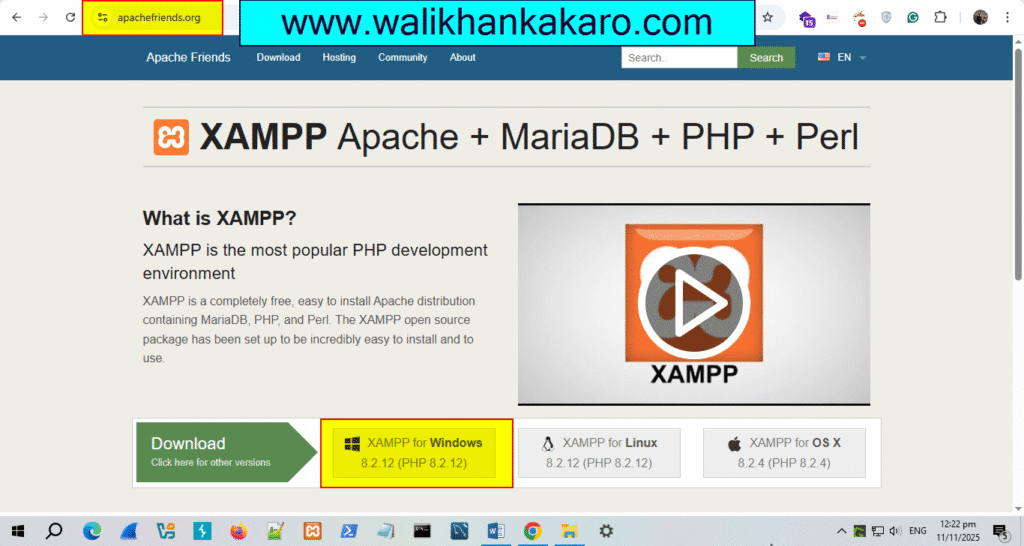
2: Download XAMPP.
Website: https://www.apachefriends.org/
3: Install XAMPP.
4: Start Apache and MySQL.
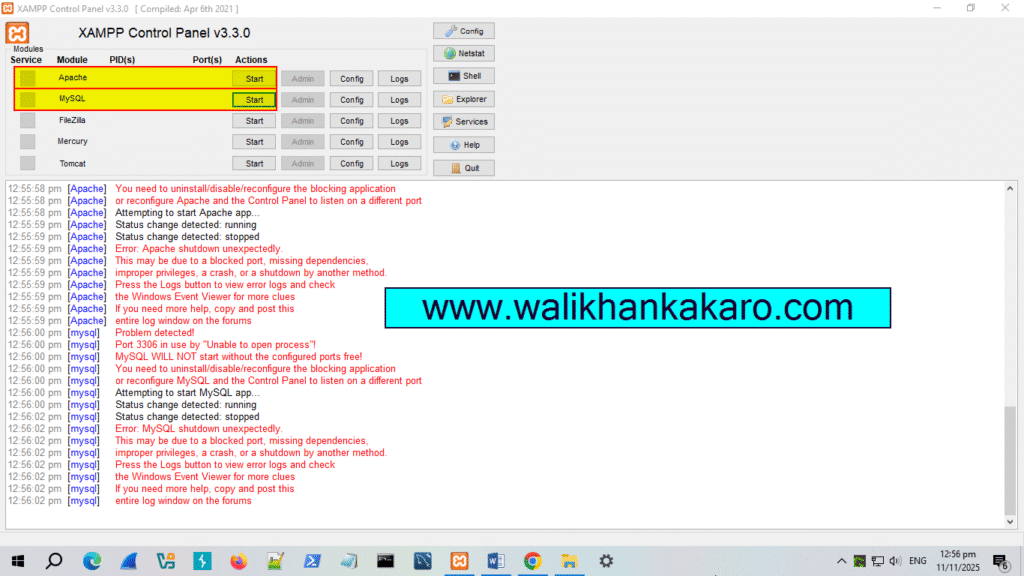
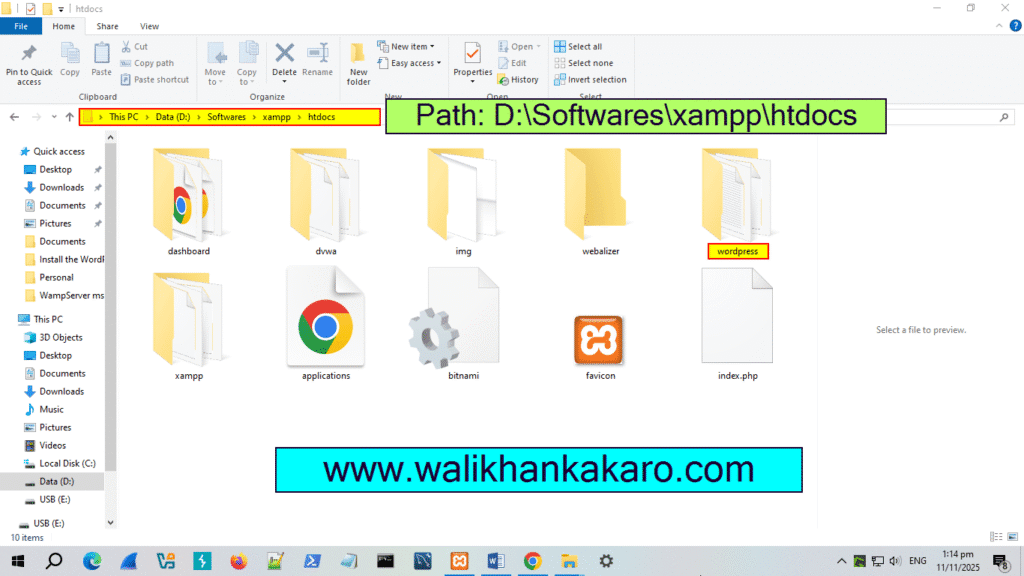
5: Copy the downloaded WordPress zip file and go to the XAMPP folder where you installed XAMPP.
6: Open the XAMPP folder and then go to the htdocs folder and paste the WordPress zip file.
7: Extract the WordPress zip file into the htdocs folder in XAMPP.
8: Create a database in PHPMyAdmin.
Link: http://localhost/phpmyadmin/
9: Install WordPress.
Link: http://localhost/phpmyadmin/localhost/wordpress
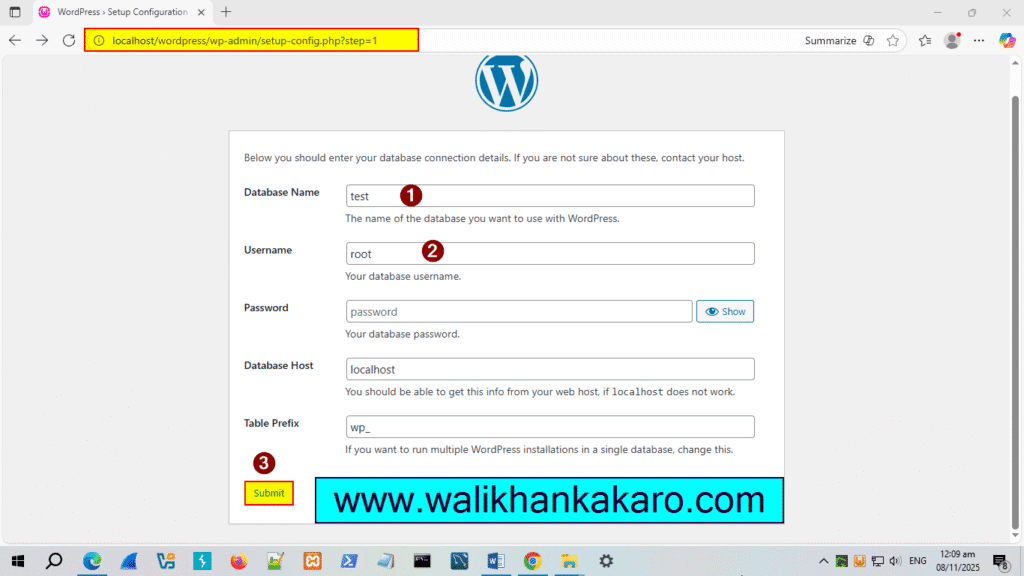
10: Open WordPress again.
Link: http://localhost/wordpress/wp-admin/
Install XAMPP on Mac
1: Download the XAMPP.
Website: https://www.apachefriends.org/
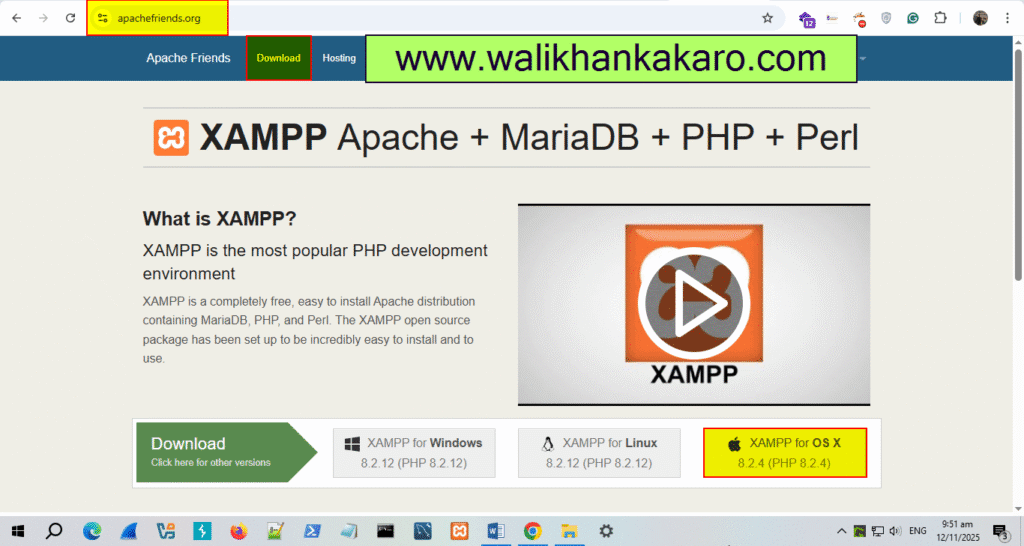
2: Install XAMPP on the MacBook.