How to install Windows 11 on MacBook
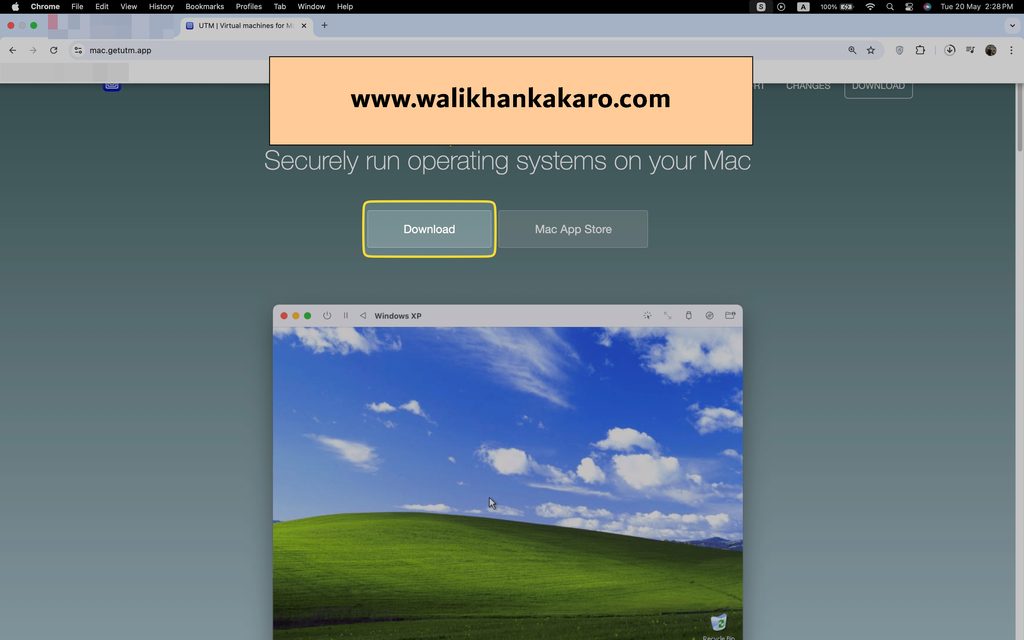
1: Download the UMT emulator.
Website: https://mac.getutm.app/
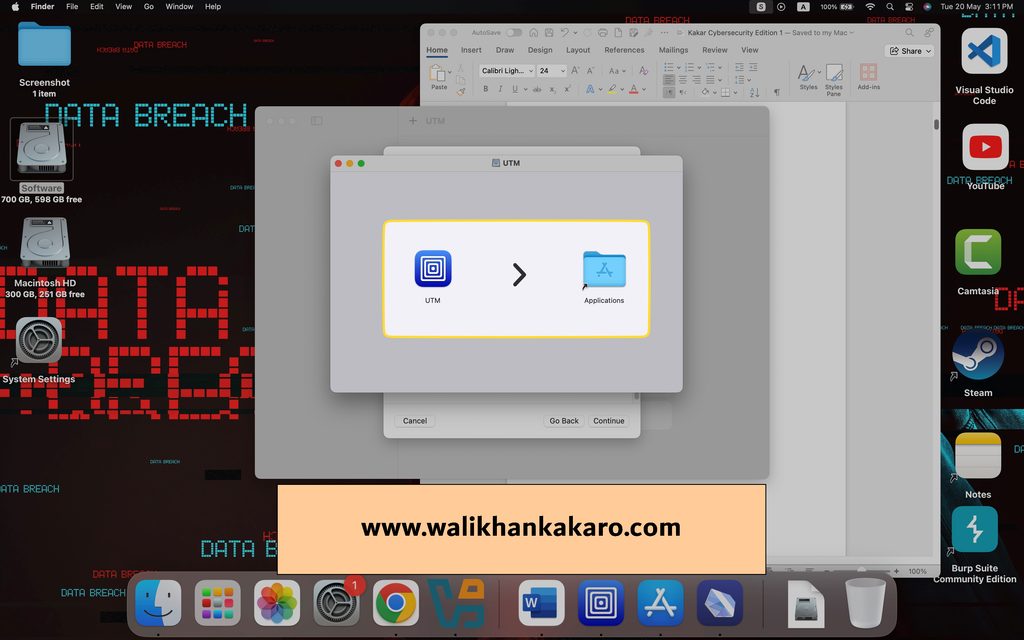
2: Drag and Drop into UTM.
3: Open the UTM emulator.
4: Create a New Virtual Machine.
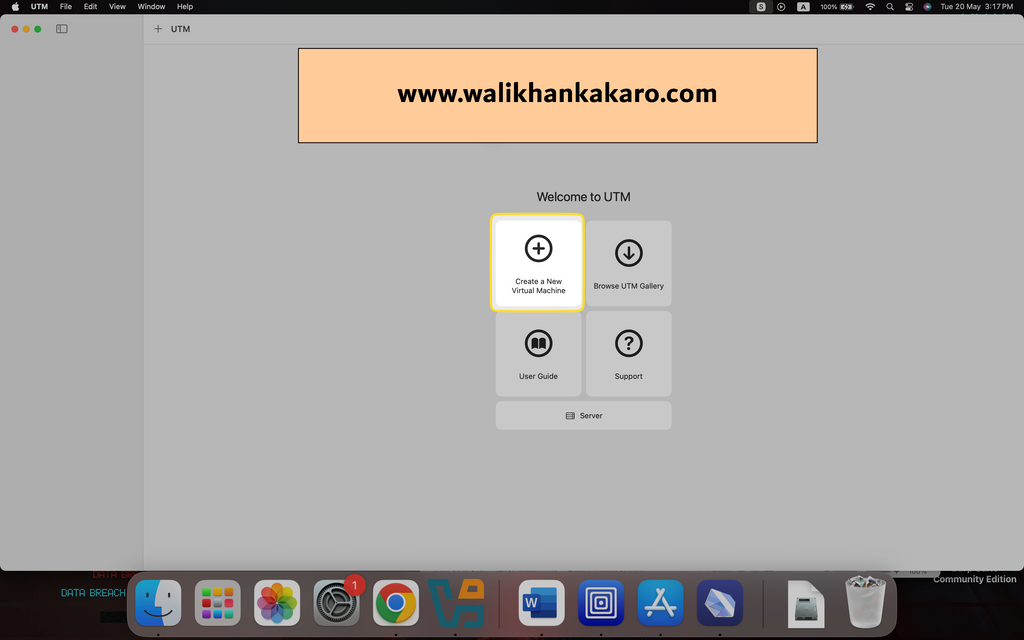
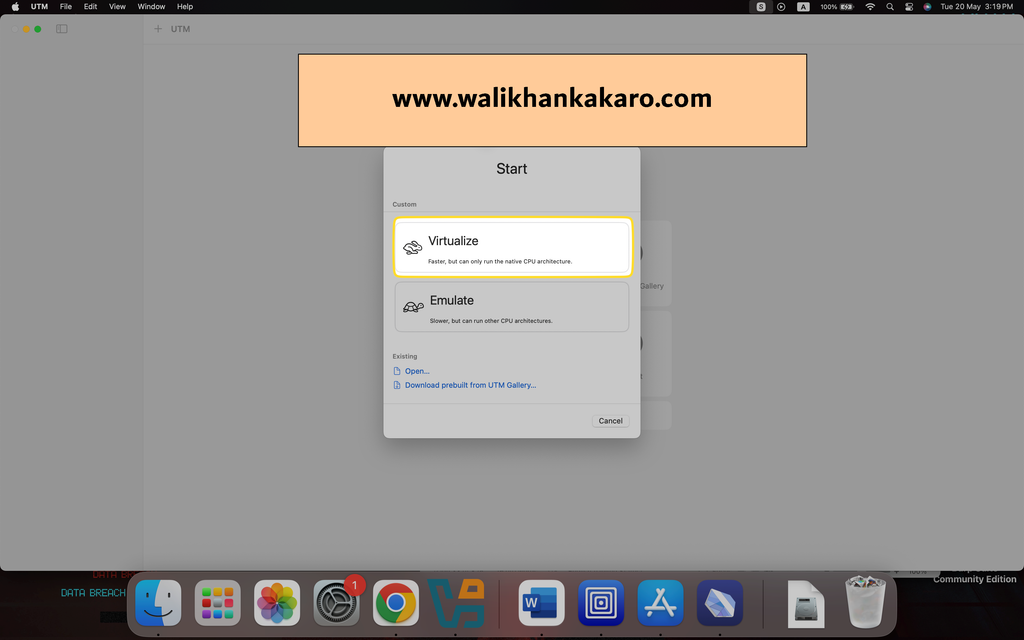
5: Select Virtualize.
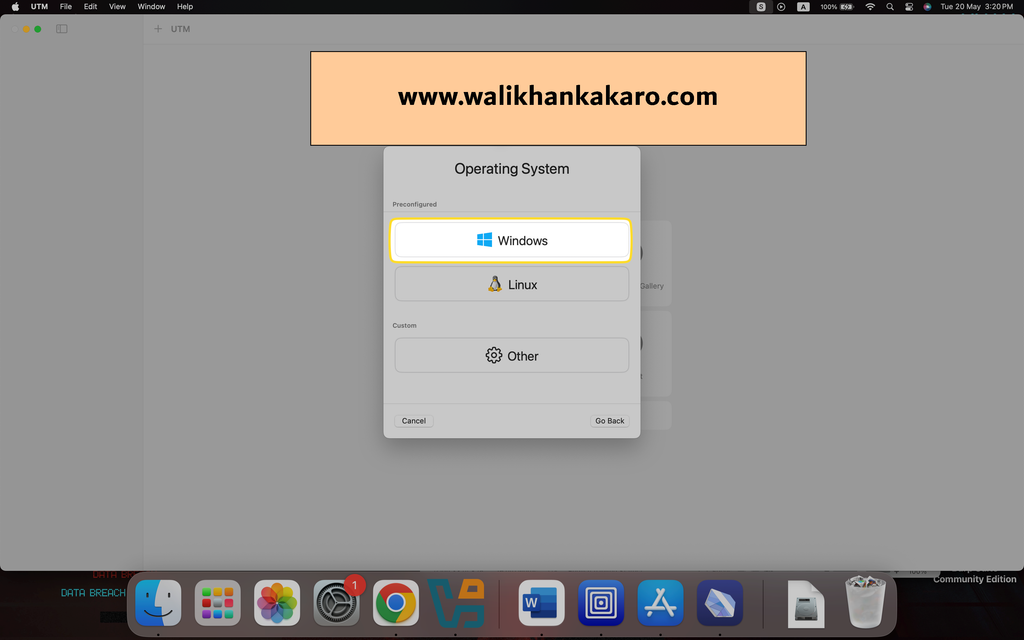
6: Select Windows.
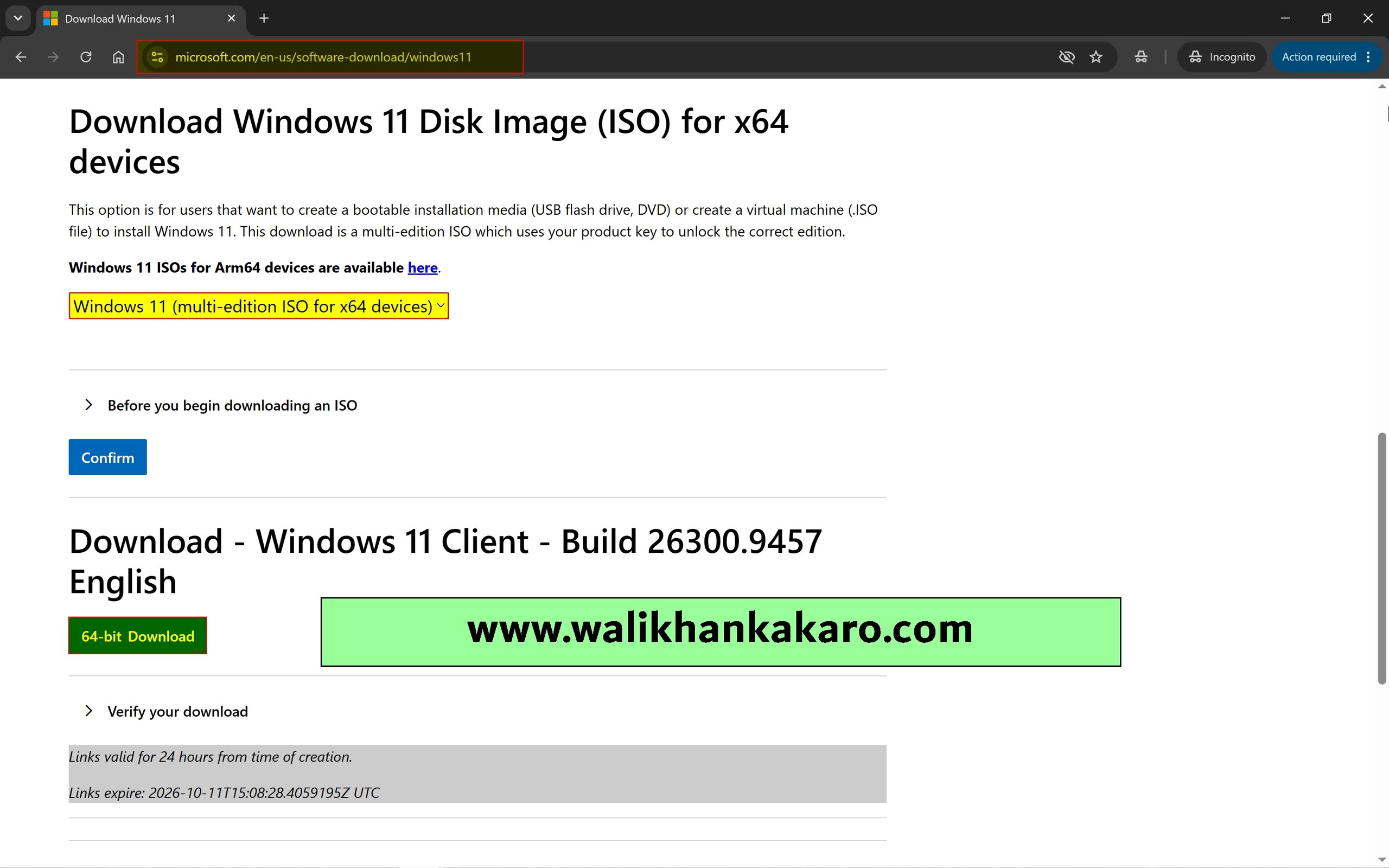
7: Download the Windows 11 ISO file from the official Microsoft website.
Website: https://www.microsoft.com/en-us/software-download/windows11
8: Upload the Windows 11 ISO File.
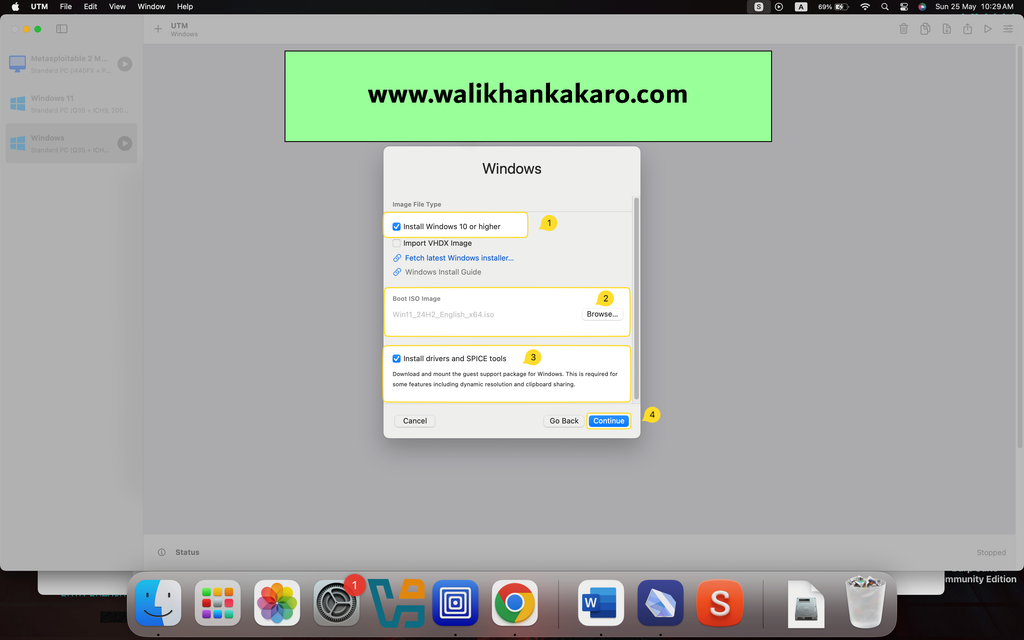
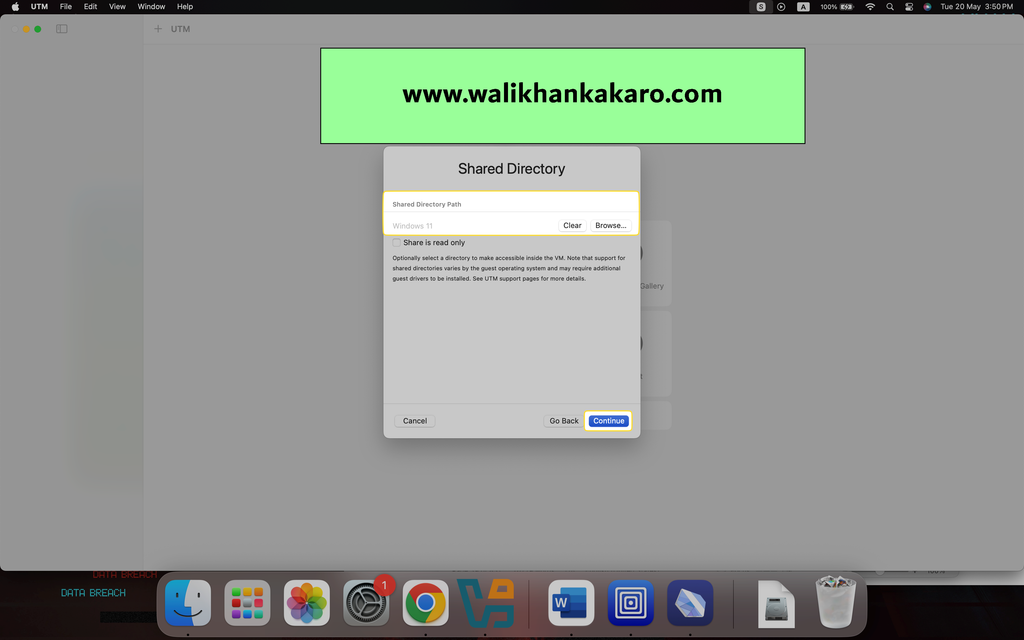
9: Set up the Shared Directory Path to share Data from Windows 11 to the MacBook.
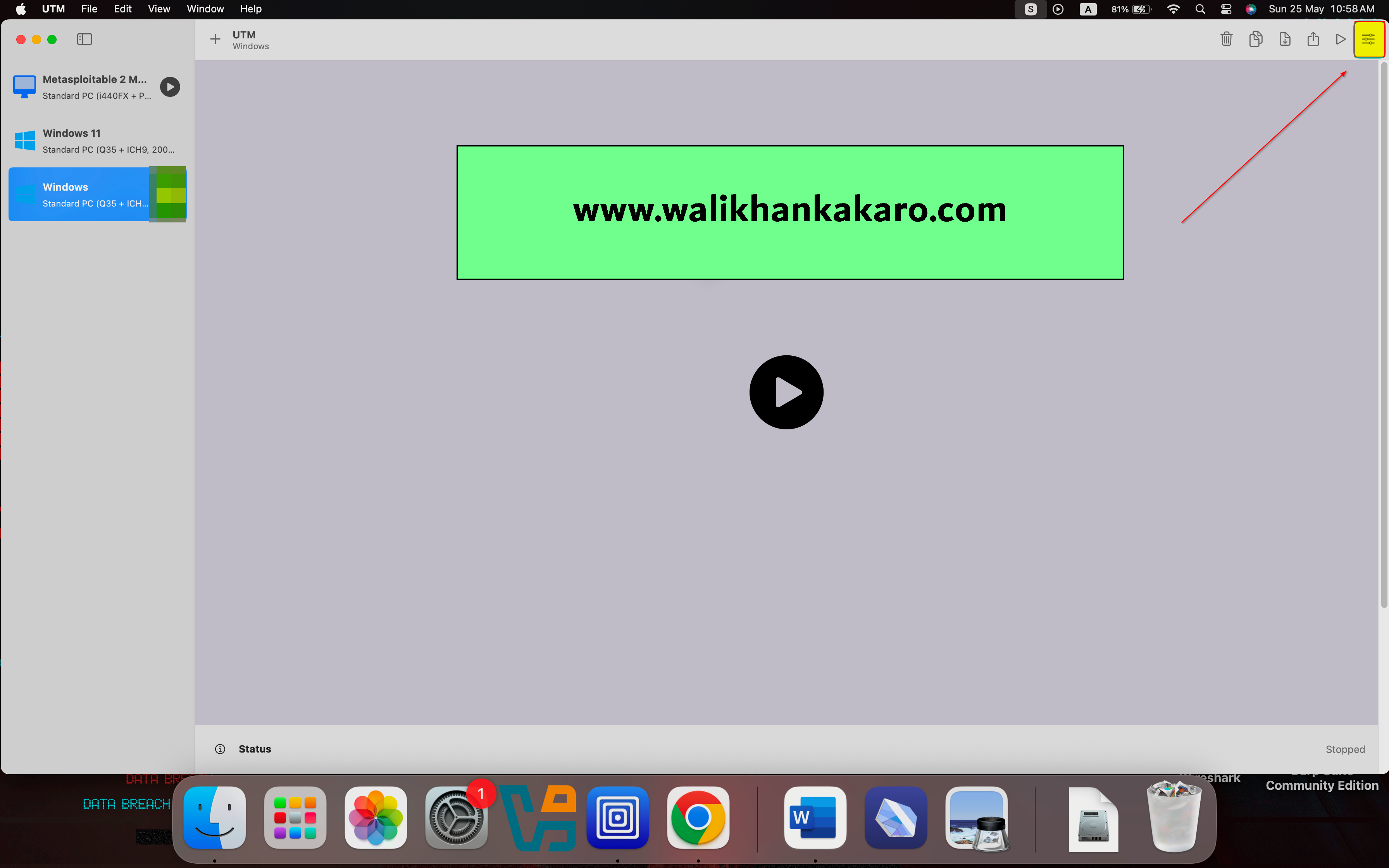
10: Open the VM settings.
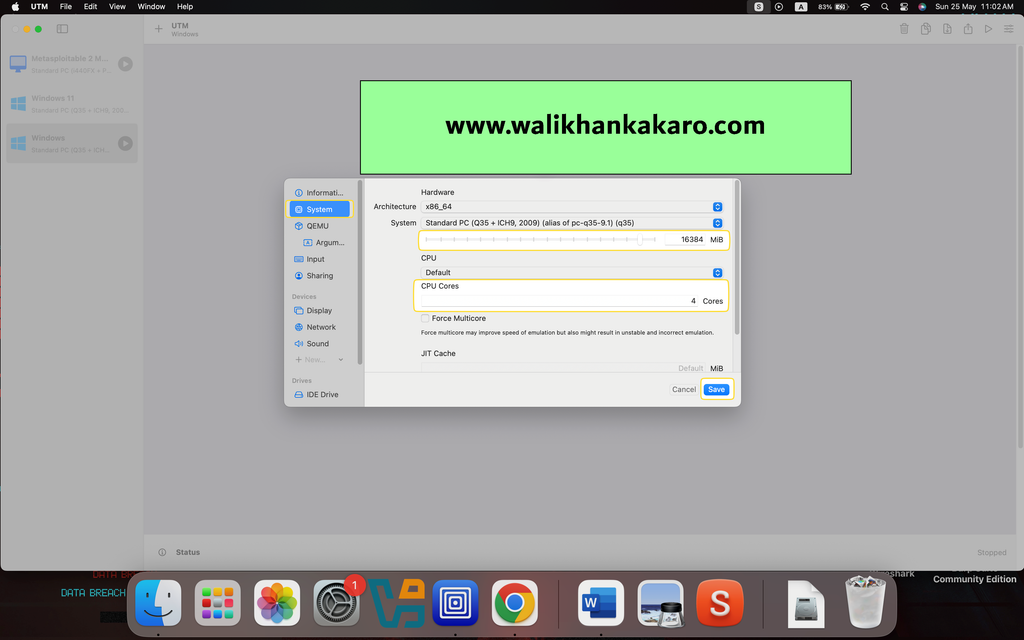
11: Optimize the RAM and CPU cores.
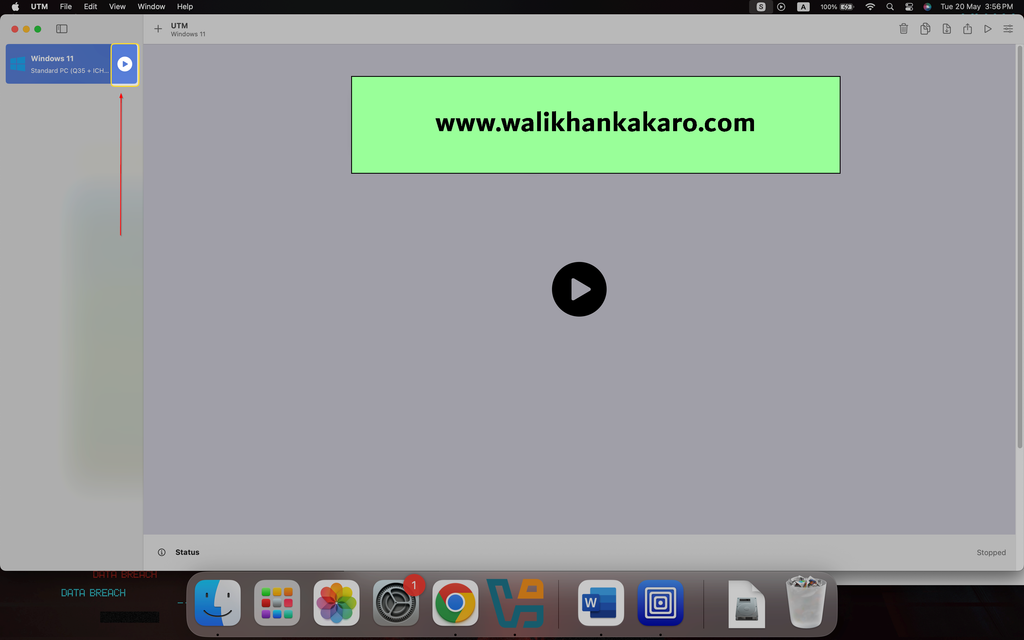
12: Start the Windows 11 installation process.
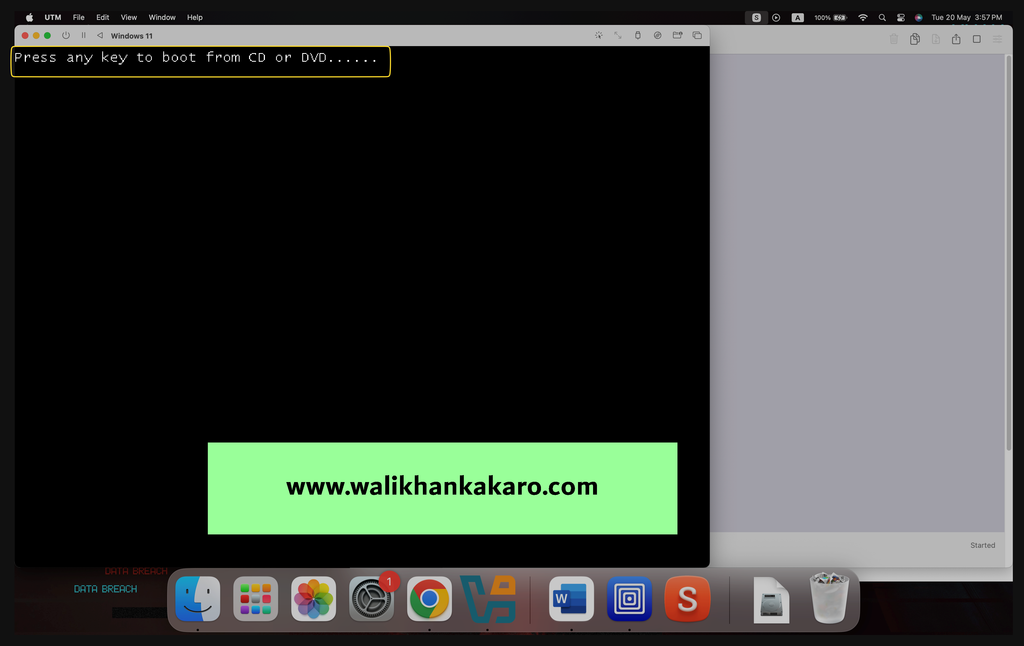
13: Press any key to start the Windows 11 Installation.
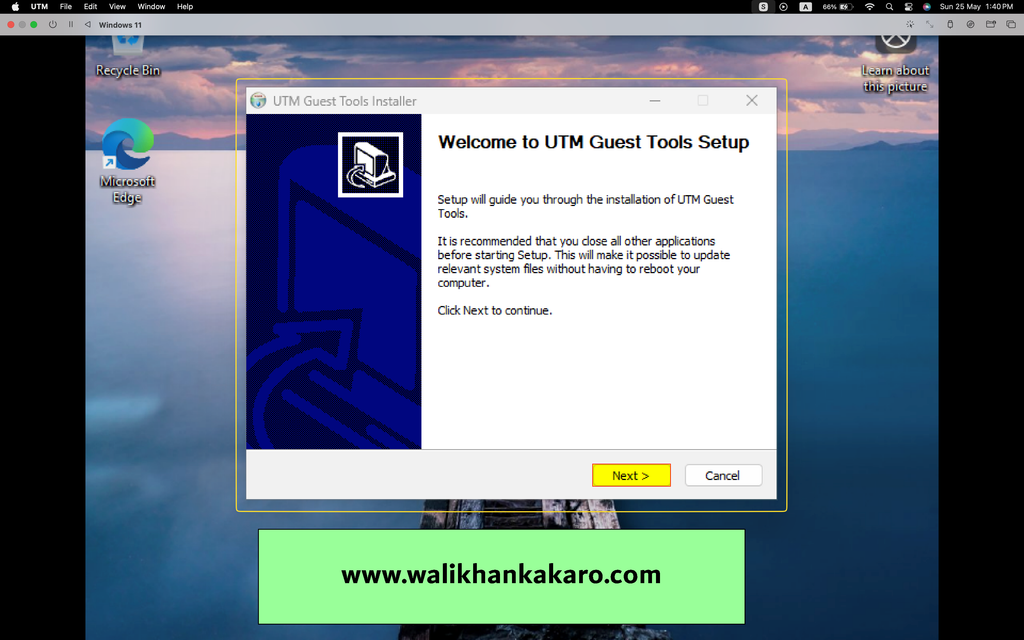
14: Install UTM Guest Tools Installer.