Install Windows 11 on MacBook Pro
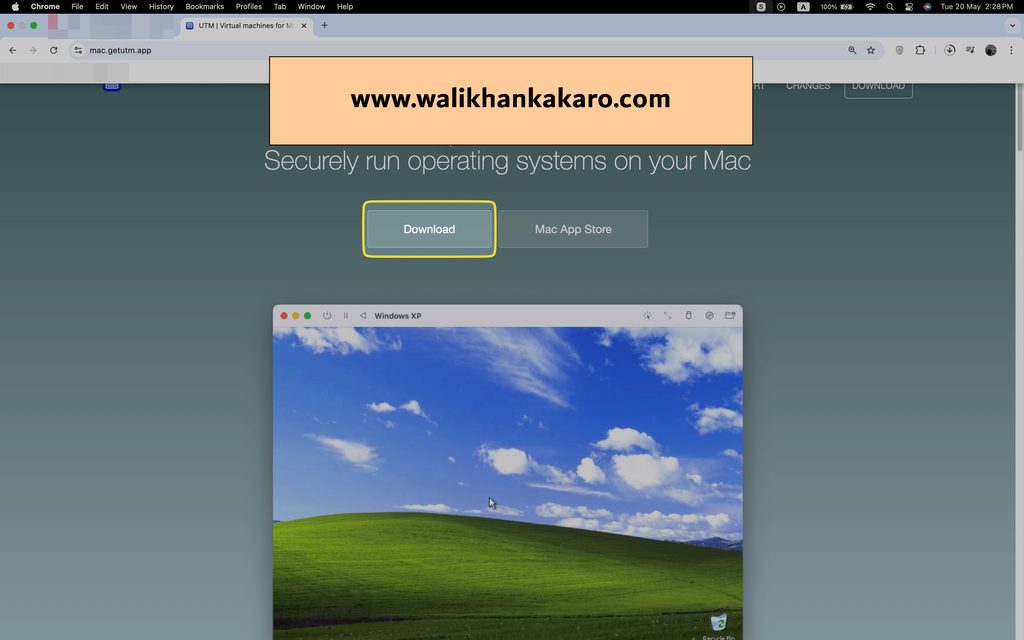
1: Download the UMT emulator.
Website: https://mac.getutm.app/
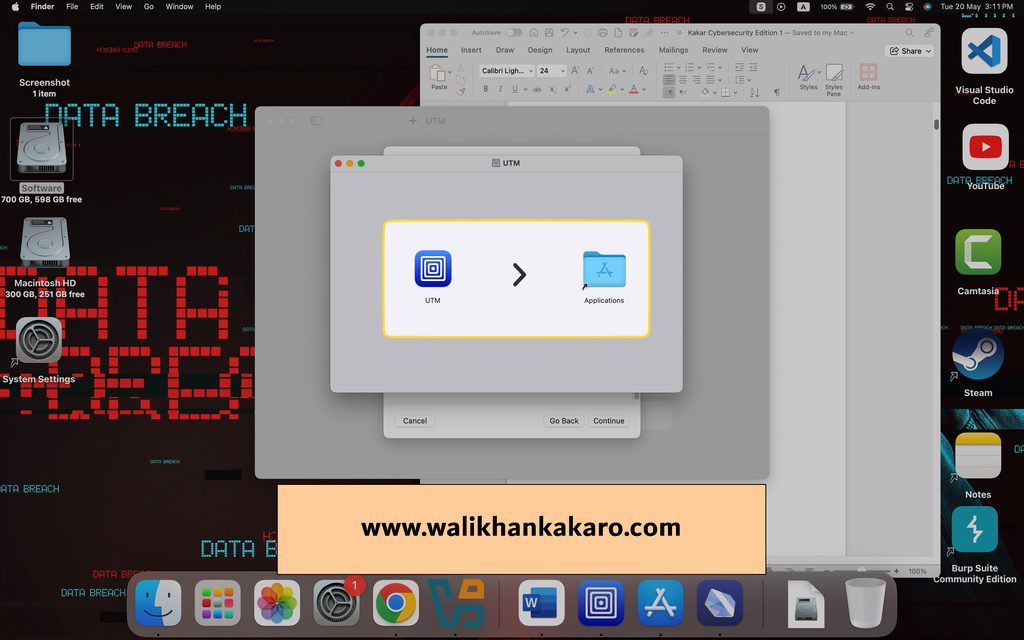
2: Drag and drop into UTM.
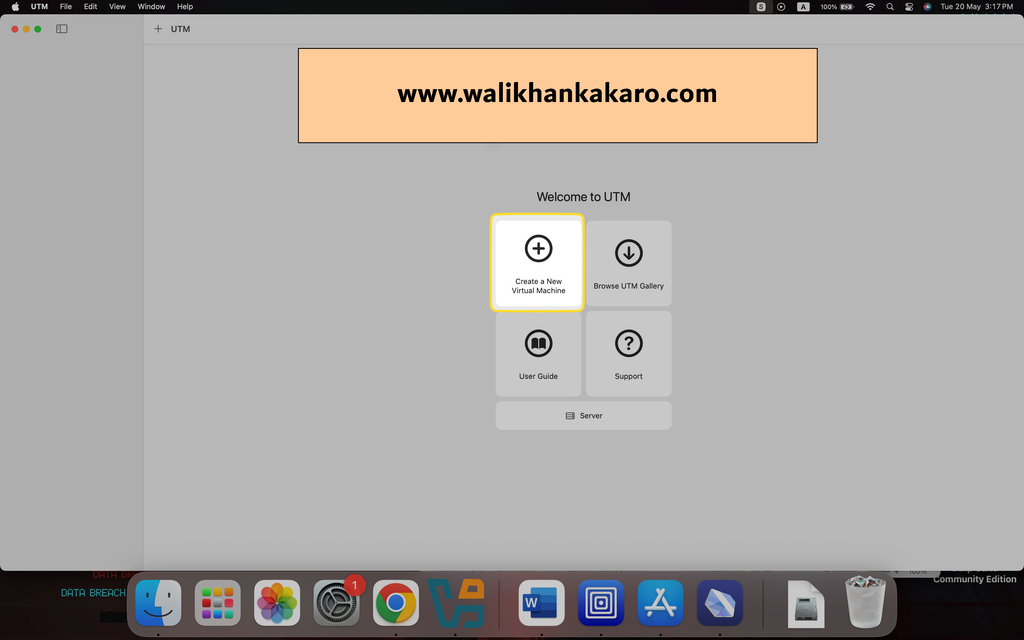
3: Open the UTM emulator.
4: Create a New Virtual Machine.
5: Select Virtualize.
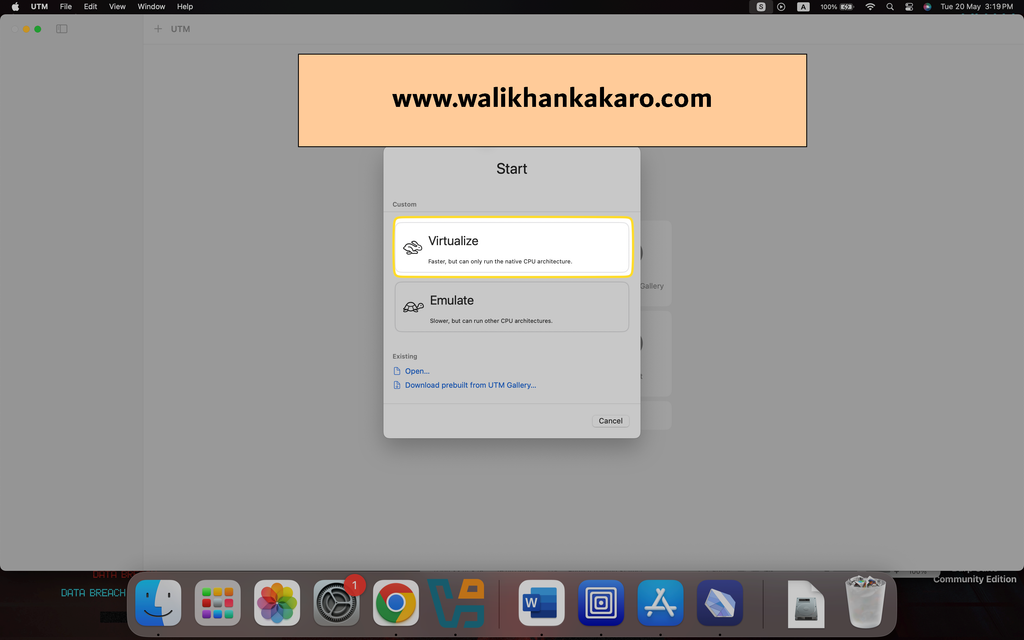
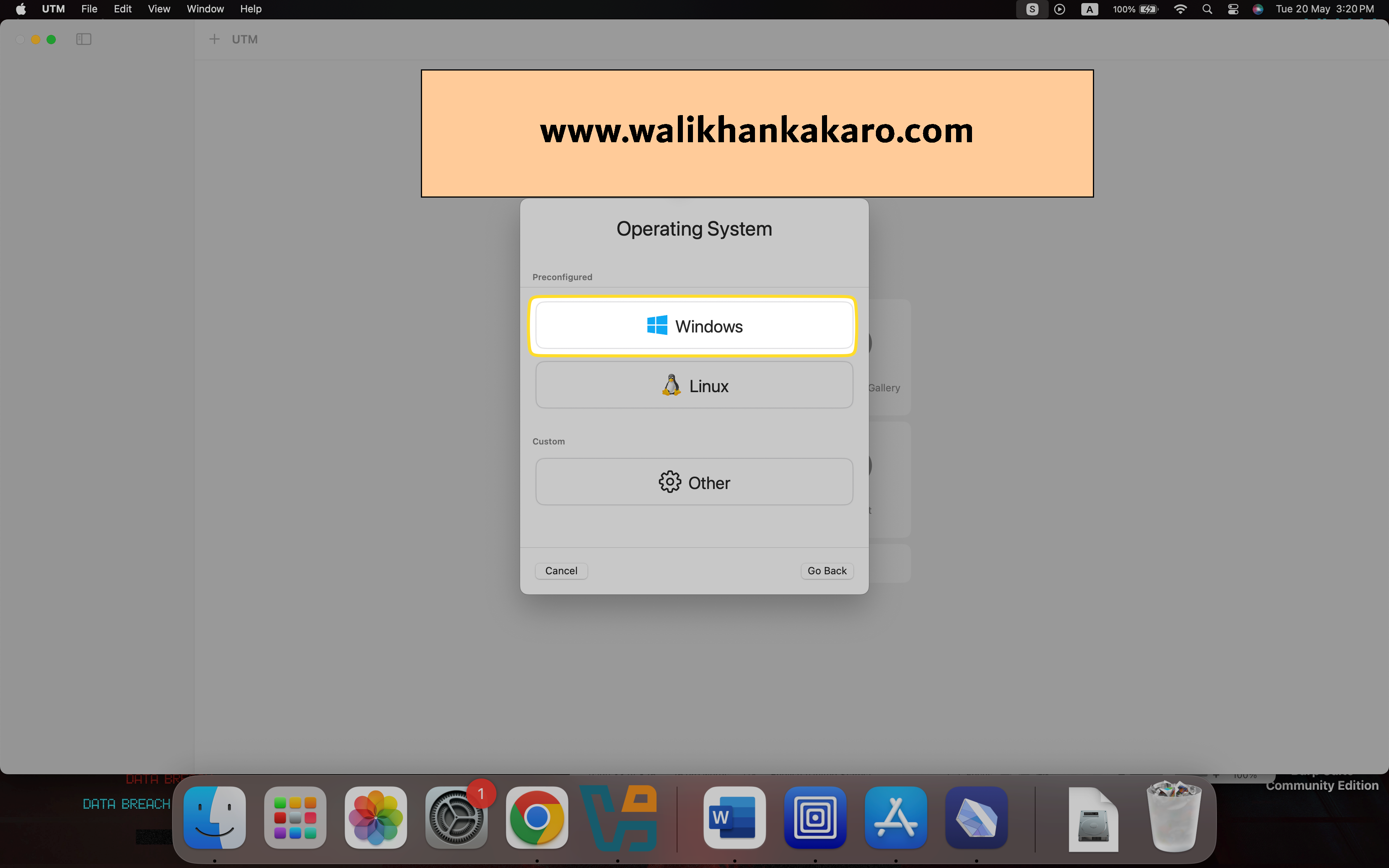
6: Select Windows.
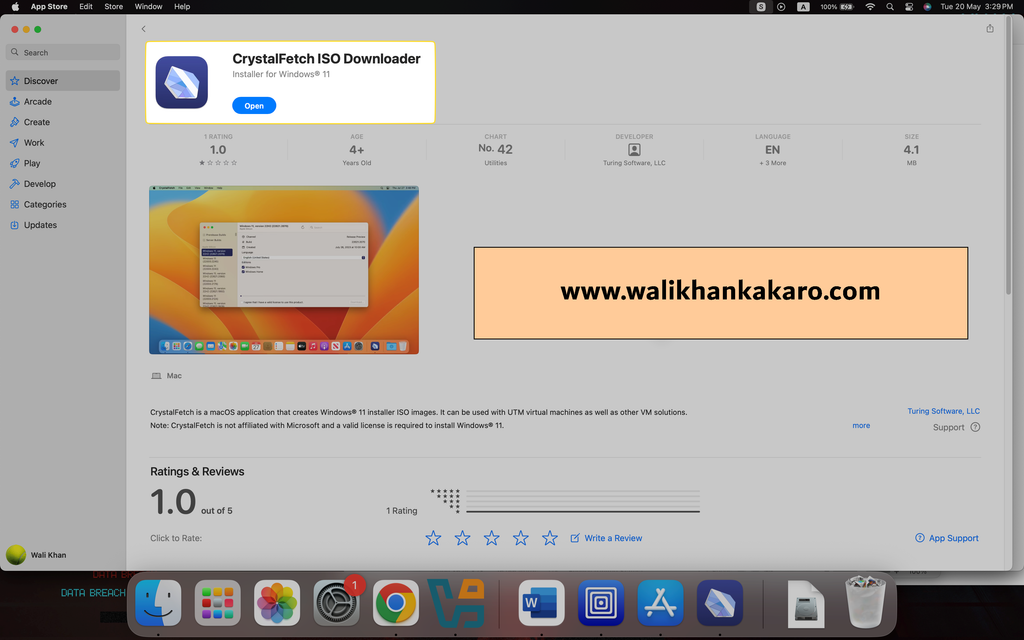
7: Download the CrystalFetch ISO Downloader from the App Store.
8: Download the Windows 11 ISO file direct from the Crystal Fetch software.
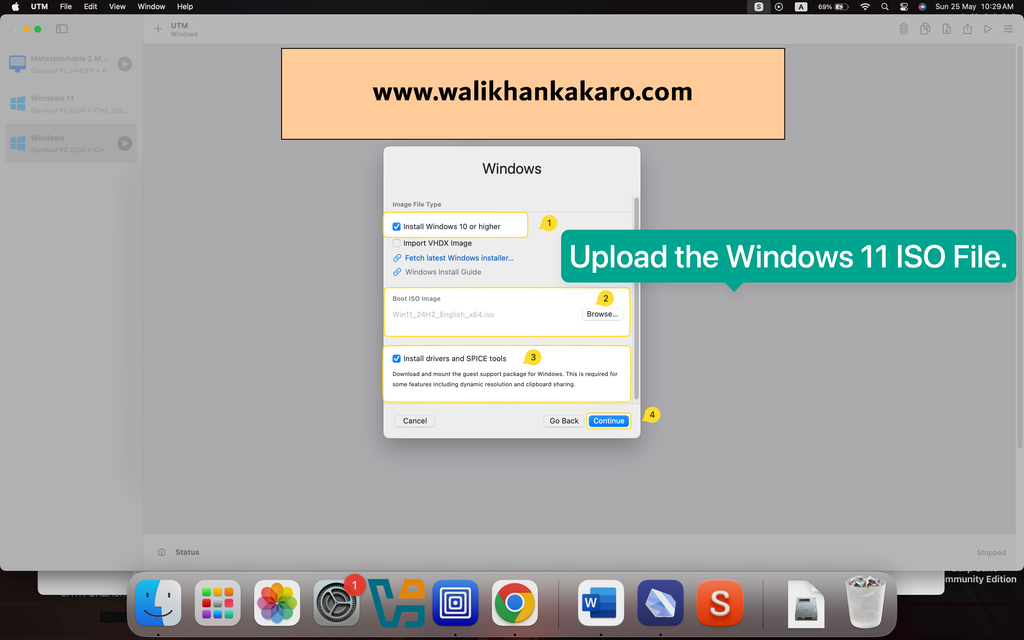
9: Set up the Windows 11 ISO file settings.
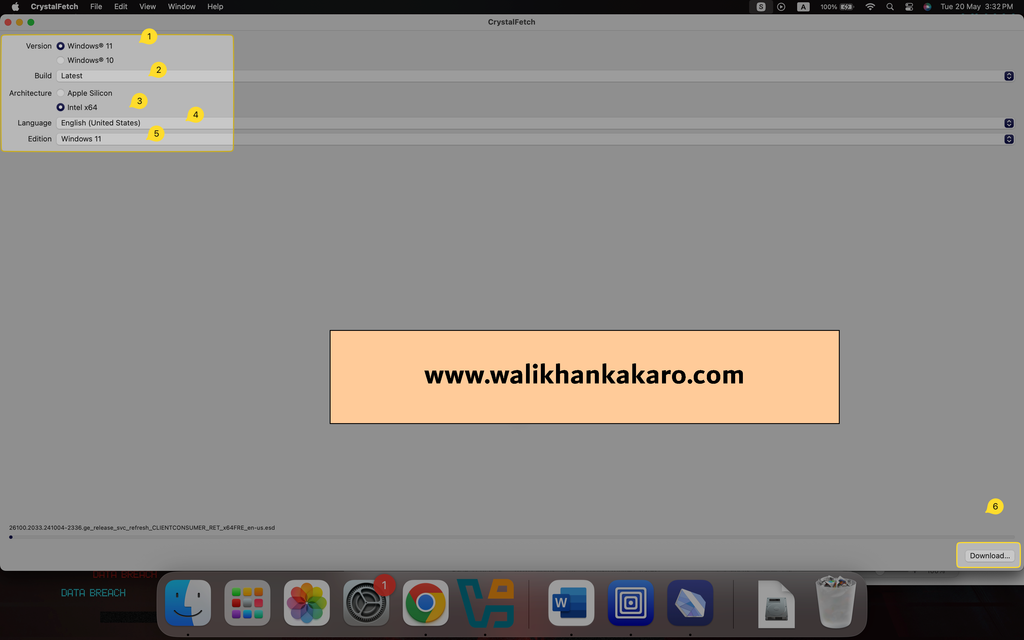
10: Upload the Windows 11 ISO image file.
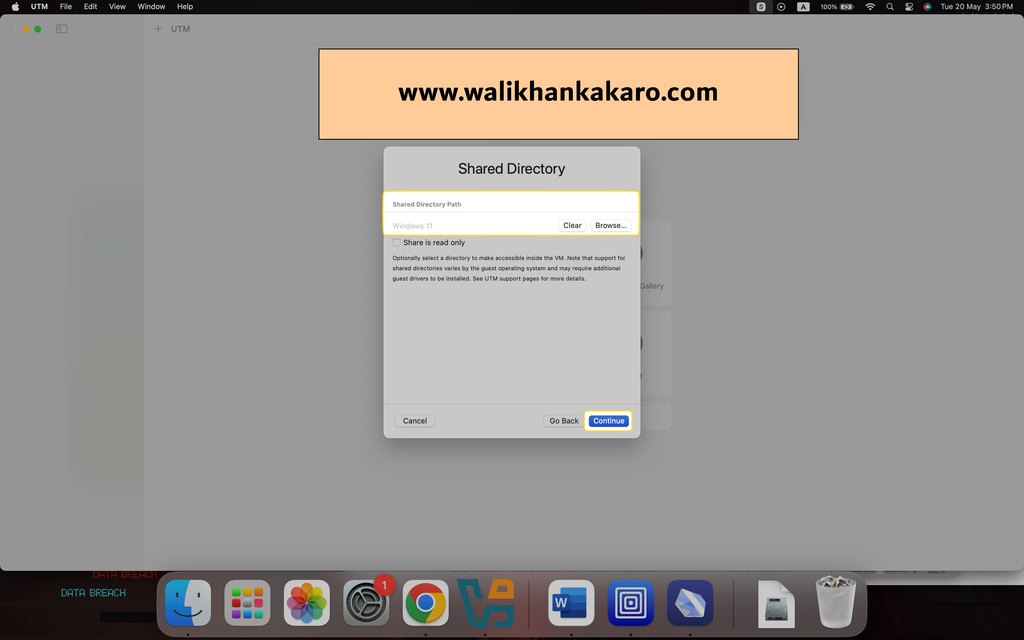
11: Select the Shared Directory where you want to shared or transfer data from Windows 11 to MacBook Pro.
12: Start Windows 11.

13: Press any key to start the Windows 11 installation process.
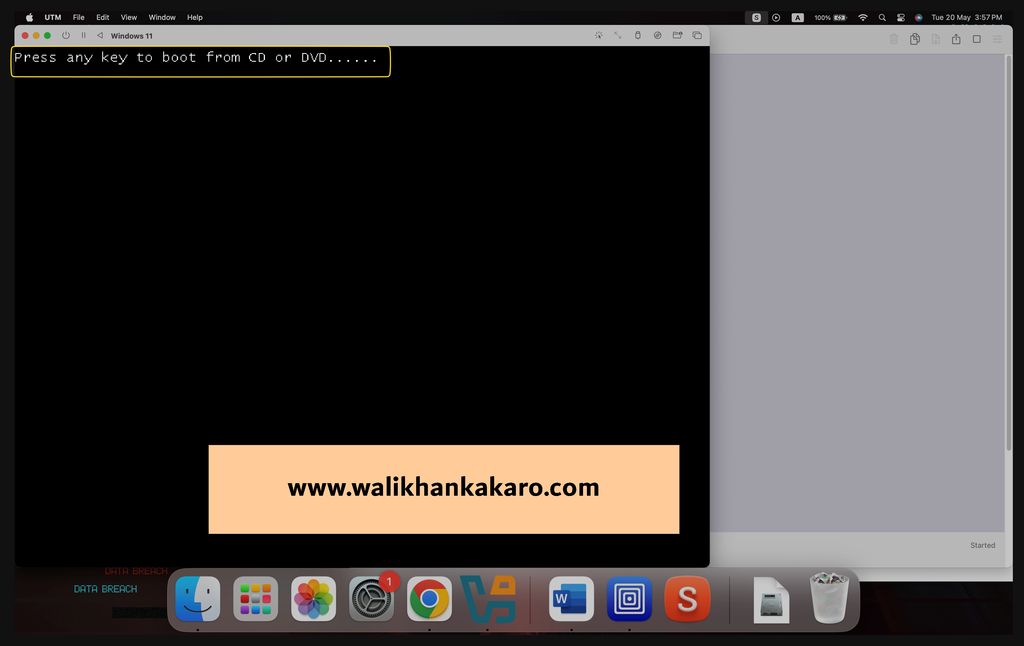
13: Install Windows 11.